

Set up your lab
Every lab in this course runs against a real SpatiumDDI on your own machine: the release the videos were recorded on, with a BIND9 DNS server and a Kea DHCP server attached. One script starts it, and another grades your work. You set it up once here and use it until the end of Part 2.
What’s in the lab
Section titled “What’s in the lab”The lab is a Docker Compose project in the course’s lab/ folder, pinned to SpatiumDDI 1.0.0-beta.3. Its docker-compose.yml is the release’s own Compose file, unchanged except for the project name, spatium-academy.
| Container | Role |
|---|---|
frontend |
The web UI, on port 8077. It also passes /api/ to the API, so the REST API and its docs answer on 8077 too |
api |
The REST API. Its own port, 8000, is published on 127.0.0.1 only |
worker, beat |
Background jobs, and the scheduler that triggers them |
postgres, redis |
The database that holds every setting and object, and the message broker. Neither is published |
migrate |
Applies the database migrations, then exits |
dns-bind9 |
BIND9 plus the SpatiumDDI agent, answering DNS on port 1053 |
dhcp-kea |
Kea plus the SpatiumDDI agent |
The two agents register themselves with the control plane as they start, using the bootstrap keys in lab/.env. Nobody adds them by hand; module 1.4 shows how it works.
Requirements
Section titled “Requirements”- Docker. Docker Desktop on macOS or Windows. On Linux, Docker Engine with the Compose v2 plugin: the command is
docker compose, not the olderdocker-compose. SpatiumDDI’s Docker guide asks for Docker Engine 25 or later and Compose 2.20 or later. - Memory. A freshly started lab uses about 1.4 GB of RAM: the worker about 0.7 GB, the API about 0.3 GB, and the rest little. The worker grows during its first hour. Give Docker at least 4 GB; in Docker Desktop, that’s one of the resource settings. SpatiumDDI’s sizing guide recommends 8 GB for a Docker Compose installation.
- Download. The first start downloads about 500 MB of images, which take about 2 GB of disk.
- A shell. The scripts are bash and use
curlandopenssl, which macOS and most Linux distributions include. On Windows, run them from a WSL 2 shell, with Docker Desktop’s WSL integration turned on for your distribution. dig, from Lab 2 on. macOS includes it. On Debian or Ubuntu, WSL included, install thednsutilspackage; on Fedora or RHEL,bind-utils. Lab 8 also usespython3.- Free ports: 8077, 8000, 1053, 6767 and 8001. Ports explains each one.
Apple Silicon Macs work as they are: the images are multi-architecture, and the course was recorded on an arm64 machine.
Get the lab kit
Section titled “Get the lab kit”The lab kit is the course’s lab/ folder: the Compose file, the scripts that start and reset the lab, and the checker. Download spatiumddi-academy-lab.zip (about 50 KB) and unzip it, or do both from a terminal:
curl -LO https://academy.spatiumddi.com/downloads/spatiumddi-academy-lab.zipunzip spatiumddi-academy-lab.zipcd spatiumddi-academyThe spatiumddi-academy folder, with lab/ inside it, is your course folder: run every ./lab/… command in the course from there. If you’re using the offline course package, lab/ is already in it, and the course folder is the one you unzipped.
Start SpatiumDDI with BIND9 and Kea
You will:
- Start the pinned SpatiumDDI lab with its BIND9 and Kea servers
- Confirm that both servers registered and that the web UI answers
Before you start: Docker is running with at least 4 GB of memory, and a terminal is open in the course folder (the folder that contains lab/).
-
Check that Compose v2 is available:
docker compose versionshould print a v2 version. -
Start the lab, keeping the default admin account for Lab 1:
Terminal window ./lab/up.sh --first-login -
Wait for the summary that starts with “SpatiumDDI lab is up.” On the first run, the script creates
lab/.envwith fresh secrets, pulls the images, applies the database migrations, starts the stack and waits for the API. The summary lists the web UI and the REST API with its docs, all on port 8077. -
In a second terminal, change into
lab/and rundocker compose ps. Every service should be running, andapishould report healthy. -
Open
http://localhost:8077. You should see the SpatiumDDI sign-in page. Don’t sign in yet: that’s Lab 1.
./lab/check.sh 0--first-login leaves the built-in admin account at admin / admin with its forced password change still pending, so that you can make the change yourself in Lab 1. If you started with plain ./lab/up.sh, run ./lab/reset-admin.sh before Lab 1.
The Lab 0 check confirms that the API is up, and that dns-bind9 and dhcp-kea are registered and active in their default server groups.
What healthy looks like
Section titled “What healthy looks like”Once you’ve signed in during Lab 1, a healthy lab’s dashboard looks like this. The screenshot was taken at the end of the course, so your counts will be lower, and the environment banner only appears once you add it in Lab 1.
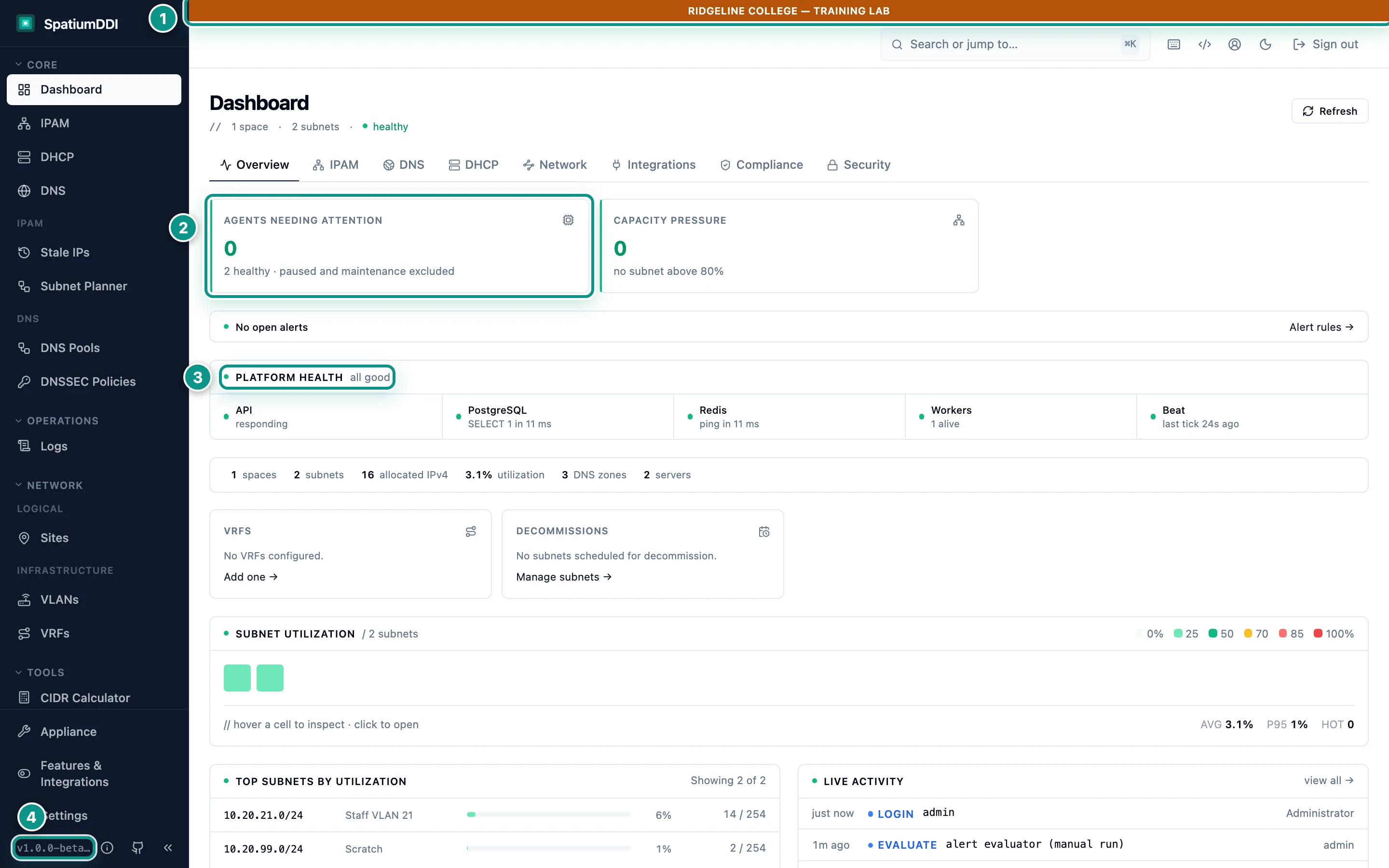
- Environment banner: you are in the training lab, not production
- Agents needing attention: 0 means BIND9 and Kea are registered and healthy
- Platform Health: API, PostgreSQL, Redis, Celery workers and beat
- Release you are running (the course targets 1.0.0-beta.3)
A new lab also starts lean: Features & Integrations reads “16 of 57 enabled”, so the sidebar shows only what a new installation needs. Module 1.3 explains feature modules.
Lab commands
Section titled “Lab commands”Run these from the course folder.
| Command | What it does |
|---|---|
./lab/up.sh --first-login |
Starts or resumes the lab and leaves admin / admin with its forced password change, for Lab 1 |
./lab/up.sh |
Starts or resumes the lab. If admin still has the default password, sets it to LAB_ADMIN_PASSWORD |
./lab/up.sh --seed |
Also loads the upstream demo data (a Corporate space, corp.example.com and more), for exploring only |
./lab/down.sh |
Stops the lab and keeps its data. ./lab/up.sh resumes it |
./lab/destroy.sh |
Stops the lab and deletes all of its data. The next start is a factory-fresh SpatiumDDI |
./lab/reset-admin.sh |
Puts admin back to admin / admin, with a forced change at the next sign-in, and clears its password history so that you can reuse LAB_ADMIN_PASSWORD. The lab must be running |
./lab/check.sh <n> |
Grades lab n. Use all for every lab, or a list such as 2,5 |
| Host port | Service | Set in |
|---|---|---|
| 8077/tcp | Web UI, plus the REST API and its docs under /api/ |
HTTP_PORT in lab/.env |
8000/tcp, on 127.0.0.1 only |
The API directly. ./lab/up.sh checks it; the course uses 8077 |
API_PORT in lab/.env |
| 1053/udp and 1053/tcp | BIND9 (port 53 inside the container) | lab/docker-compose.yml |
| 6767/udp | Kea (port 67 inside the container) | lab/docker-compose.yml |
| 8001/tcp | Kea’s high-availability peer port, unused in the course | lab/docker-compose.yml |
- PostgreSQL and Redis aren’t published at all.
- DNS and DHCP sit on high port numbers so they can’t clash with a resolver or another service already using 53 or 67 on your machine. That’s why every
digin the course says@127.0.0.1 -p 1053. - The lab has no real DHCP clients: Docker’s port mapping doesn’t carry DHCP broadcasts from your network. Leases stay empty, so the DHCP labs check configuration, not leases.
- Docker publishes the web UI, DNS and DHCP ports on all of your machine’s network interfaces, and the API’s port on
127.0.0.1only, as SpatiumDDI’s own Compose file does. The lab’s admin password is printed in this course, so run the lab on a network you trust, and never expose it to the internet.
The lab’s settings file
Section titled “The lab’s settings file”On its first run, ./lab/up.sh creates lab/.env from lab/.env.example and fills every secret with a fresh random value. You’ll read two values from it; leave the rest alone.
| Setting | Default | What it’s for |
|---|---|---|
SPATIUMDDI_VERSION |
1.0.0-beta.3 |
The release the course targets. Keep it |
COMPOSE_PROFILES |
dns-bind9,dhcp |
Starts the BIND9 and Kea agents with the control plane |
HTTP_PORT, API_PORT |
8077, 8000 |
Host ports for the web UI and the API |
LAB_ADMIN_PASSWORD |
Ridgeline-Lab-2026! |
The password the scripts expect admin to have after Lab 1 |
POSTGRES_PASSWORD, SECRET_KEY, the agent keys |
Random | Generated on the first run |
lab/.envholds your lab’s real secrets. Keep it out of chats, screenshots and version control../lab/destroy.shkeepslab/.env. Don’t delete the file while the lab still has data: a new file brings new secrets that no longer match the existing database. To start completely fresh, run./lab/destroy.shfirst.
Troubleshooting
Section titled “Troubleshooting”A port is already in use
Section titled “A port is already in use”./lab/up.sh stops with a Docker error saying that a port is already allocated or in use. On macOS or Linux, find what holds it with lsof -nP -iTCP:8077 for a TCP port, or lsof -nP -iUDP:1053 for a UDP port.
- 8077 or 8000. Stop the other program, or change
HTTP_PORTorAPI_PORTinlab/.env, which exists after the first attempt, and run./lab/up.shagain. Your secrets are kept. If you change a port, use yours wherever the course says 8077 or 8000. - 1053, 6767 or 8001. Free the port. These are fixed in
lab/docker-compose.yml, and the course’s commands assume 1053.
The script seems stuck at “pulling images”
Section titled “The script seems stuck at “pulling images””The first run downloads about 500 MB without showing progress, so on a slow connection it can sit there for a while. If the pull fails, check that your network, VPN or proxy lets you reach ghcr.io, where the SpatiumDDI images are published, and Docker Hub, which serves the PostgreSQL and Redis images.
The API never comes up
Section titled “The API never comes up”The script waits a few minutes for the API. If it gives up, it stops with API did not become healthy within 180s. From inside lab/, see which service isn’t running and read its log:
docker compose psdocker compose logs apiAlso check that Docker has at least 4 GB of memory.
Lab 0’s check says a server isn’t registered
Section titled “Lab 0’s check says a server isn’t registered”The agents register within seconds of starting, but a busy machine can take longer. Wait a minute and run ./lab/check.sh 0 again. If a check still fails, read that agent’s log from inside lab/: docker compose logs dns-bind9 or docker compose logs dhcp-kea. If the checker says “The lab isn’t running”, start it with ./lab/up.sh.
Signed out after a break
Section titled “Signed out after a break”SpatiumDDI signs out a console that has been idle for 60 minutes and returns it to the sign-in page. Sign in again: everything you saved is still there. Module 1.2 shows where the timeout is set.
“Could not sign in as admin with the lab password or admin/admin”
Section titled ““Could not sign in as admin with the lab password or admin/admin””./lab/up.sh prints this when admin has a password the script doesn’t know, usually because you chose something other than LAB_ADMIN_PASSWORD in Lab 1. The lab is running anyway. Run ./lab/reset-admin.sh, then ./lab/up.sh, which sets the password to LAB_ADMIN_PASSWORD for you.
Windows
Section titled “Windows”Run the scripts from a WSL 2 shell, not from PowerShell or Command Prompt, and turn on Docker Desktop’s WSL integration for your distribution. If a script reports “Permission denied”, run it through bash instead, for example bash lab/up.sh --first-login.
Apple Silicon
Section titled “Apple Silicon”Nothing to change. The images run natively on arm64, and the course was recorded on an arm64 machine.
Start over
Section titled “Start over”./lab/destroy.sh, then ./lab/up.sh --first-login, gives you a factory-fresh SpatiumDDI. You lose everything you built, so redo the labs in order.
With Lab 0 passing, start Part 1 with 1.1 DDI in one control plane.