

2.6 Backups and upgrades
Trash and the audit log cover small mistakes. For a failed disk, a damaged database or an upgrade that goes wrong, you need a backup, and proof that it restores.
SpatiumDDI is beta software that ships often, and its database migrations only run forward, so the backup you take before an upgrade is your only way back. This module sets up Ridgeline’s backups, proves them, and gives you an upgrade checklist to follow every time.
What you’ll learn
Section titled “What you’ll learn”- Build a manual backup, and know what’s inside it and how to protect it
- Restore from an archive, and know what a restore replaces
- Schedule backups to a destination with retention, and prove them with restore drills
- Design a 3-2-1 backup policy for a real install
- Upgrade a Docker Compose install step by step, including the bridge from a dated release to 1.0, and know how appliance and Kubernetes upgrades differ
Watch it first
Section titled “Watch it first”The video takes a passphrase-protected manual backup, schedules nightly backups with retention, proves the archive restores with a drill, and ends with the upgrade steps that the checklist below spells out, including the bridge release. The walkthrough repeats the clicks.
Transcript
0:00Module 2.6: backups and upgrades. Trash and the audit log cover small mistakes. For everything else, from a failed disk to a bad upgrade, you need backups, and proof that they restore.
0:14Start with a manual backup, under Administration, Backup. Choose a strong passphrase and keep it in your vault. It protects the install's secret key inside the archive, and if you lose it, there's no way to recover it. The hint is stored in clear text, so make it a reminder, never the passphrase itself. Build and download takes seconds.
0:36Know what you're holding. The archive holds a full database dump, a manifest, and the secret key, wrapped with your passphrase. The database dump itself isn't encrypted, so treat the file like the database: store it somewhere access-controlled and encrypted at rest.
0:53Restoring is deliberate. It overwrites every table, so SpatiumDDI takes a safety dump first and makes you type a confirmation phrase before it will start. On a different install, the restore uses the key inside the archive, unlocked by your passphrase, to re-encrypt the stored secrets for their new home.
1:13Manual backups are for right before a change. Day to day, schedule them. On Destinations, add a target. SpatiumDDI can write to S3, Azure, Google Cloud, SFTP, SMB, NFS, FTP, WebDAV or an HTTPS endpoint. In the lab, use a local volume. Run it nightly at 02:00 UTC, and keep the last seven archives.
1:40Don't wait for tonight. Run now writes the first archive straight away, and the target shows when the next scheduled run is due.
1:48A backup you've never restored is only a hope. On Restore Drills, run a drill. It replays the newest archive into a throwaway database, checks it, and drops it again, without touching your live data. Drills can run on a schedule, too, so you always know your last proven backup.
2:06Upgrades follow one rule: back up first. Then read the release notes, set the new version, pull the images, run the database migrations, and restart the stack. Coming from a release older than the bridge, 2026.10.02-1, upgrade to the bridge first, then to 1.0. The version badge confirms what you're running, and the upgrade checklist on this page has every command.
2:31That completes part two. Ridgeline now has role-based access, a scoped API token, safety nets for mistakes, and nightly backups that are proven to restore. Part three goes under the hood: architecture, high availability and hardening.
Manual backups
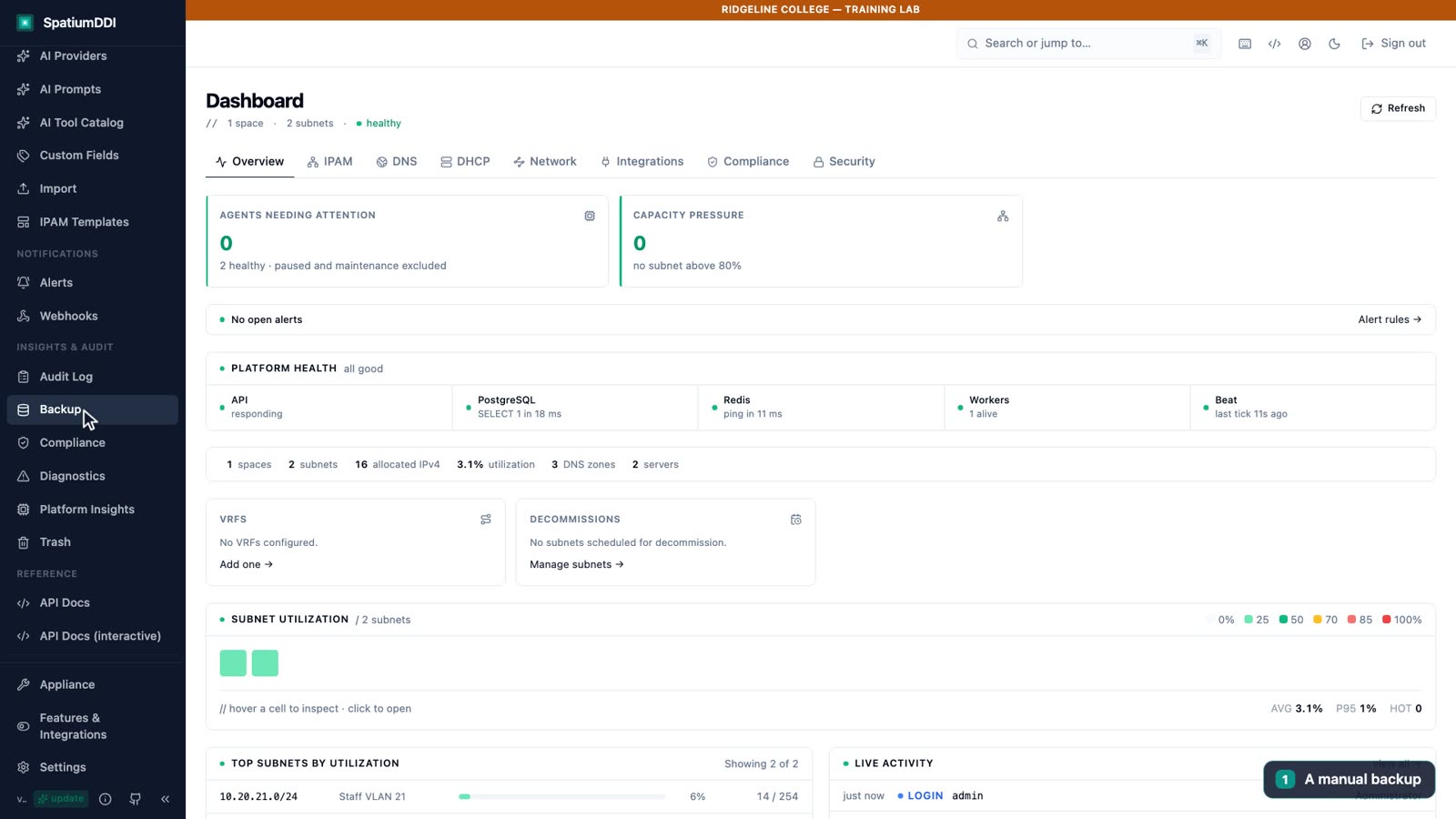
Section titled “Manual backups”Administration → Backup has four tabs: Manual, Destinations, Restore Drills and Factory Reset. Every backup action needs a superadmin; anyone else sees the controls disabled. On Manual, the Create + download backup card builds an archive and downloads it to your browser:
- Passphrase and Confirm passphrase: at least 8 characters. Choose a strong one and keep it in your password vault.
- Hint (optional): stored in clear text inside the archive and in the audit log, so make it a reminder, never the passphrase itself. SpatiumDDI refuses a hint that contains the passphrase.
- Exclude secrets (diagnostic mode): removes every secret from the archive, from credentials, API keys, TSIG keys and TOTP secrets to password and token hashes and the install’s own encryption key. That gives you an archive you can share with support. But a restore from it leaves an install where every local password,
admin’s included, has to be reset and every API token issued again, so leave it clear for real backups. - Build + download takes seconds. The file is named
spatiumddi-backup-<hostname>-<date>-<time>-<random>.zip, for examplespatiumddi-backup-7e10b98b5b95-20261102-055530-f54026.zip.
Take a manual backup before every upgrade and every risky change.
What’s in the archive
Section titled “What’s in the archive”| File | Contents | Protected by |
|---|---|---|
manifest.json |
Version, schema revision, hostname, creation time and the hint | Nothing |
database.dump |
A full pg_dump of the database, in custom format |
Nothing: it isn’t encrypted |
secrets.enc |
The install’s SECRET_KEY (and CREDENTIAL_ENCRYPTION_KEY, if set), which unlock the credentials stored in the database |
Your passphrase (PBKDF2-HMAC-SHA256 with 600,000 iterations, then AES-256-GCM) |
README.txt |
Notes on the format and on restoring | Nothing |
Two consequences follow. First, anyone who can read the file can read your IPAM, DNS and DHCP data, so treat it like the database: store it somewhere access-controlled and encrypted at rest. Second, the passphrase is the only key to secrets.enc. Lose it and the secrets are gone; there is no recovery.
Restoring
Section titled “Restoring”On the Manual tab, Restore from file takes an archive and the passphrase it was made with. Restore mode offers Full restore, the default, and Selective restore:
- A full restore is a hard overwrite: every table on the install is replaced with the archive’s contents.
- A selective restore replaces only the sections you tick, plus the tables linked to them.
Apply restore stays disabled until you type RESTORE-FROM-BACKUP exactly, and only superadmins can restore. You can also restore any archive held at a destination, with the same passphrase and phrase.
Scheduled backups to a destination
Section titled “Scheduled backups to a destination”Manual backups are for right before a change. Day to day, schedule them. On the Destinations tab, Add target opens Add backup target:
| Field | What to enter |
|---|---|
| Name, Description | What the target is, for example nightly-local |
| Destination kind | One of the ten kinds listed below the table |
| Kind-specific fields | For Local volume, the Filesystem path (/var/lib/spatiumddi/backups by default); for the other kinds, the server or bucket and its credentials |
| Passphrase, Passphrase hint | The same rules as a manual backup; a restore from this target needs it |
| Schedule (cron, UTC) | A preset (hourly, every 6 or 12 hours, daily at 02:00 or 04:00 UTC, weekly on Sunday at 03:00, monthly on the 1st at 03:00) or your own 5-field cron. Blank means manual only |
| Immutability | Write-only destination: SpatiumDDI writes archives but never deletes them, so retention is left to the destination, and drills can’t verify it. Always on for HTTPS PUT / POST |
| Retention | Keep all archives, keep the last N archives, or keep archives newer than N days. N is at least 1, and retention never deletes the newest archive |
| Enabled (the schedule fires) | Clear it to pause the schedule without deleting the target |
The ten destination kinds are Local volume, AWS S3 / S3-compatible, Azure Blob Storage, Google Cloud Storage, SCP / SFTP, SMB / CIFS, FTP / FTPS, WebDAV (Nextcloud / ownCloud), NFS export and HTTPS PUT / POST (Artifactory, Nexus, presigned URL).
The destination’s own credentials are stored encrypted, separately from the archive passphrase. Each target row offers Run now, Test connection, Edit and Delete, lists the archives, and shows when the next run is due; that time is shown in your local time zone, although the schedule itself is in UTC.
A Local volume path must be one volume mounted on both the api and the worker, because the worker writes the scheduled runs and the api lists and restores them. The release’s Compose file mounts its spatium_backups volume at /var/lib/spatiumddi/backups on both, and Test connection warns when a target’s path isn’t on a mounted volume.
Proving it: restore drills
Section titled “Proving it: restore drills”A backup you’ve never restored is only a hope. The Restore Drills tab replays each target’s newest archive into a throwaway database, checks the result and drops it again. Your live database is never touched.
- Recovery readiness lists each target with its Drill schedule, Latest verdict and Last proven date. Run drill runs one now; Schedule sets a drill cron, separate from the backup schedule. The docs recommend weekly drills against nightly backups.
- A drill checks that an archive exists and is in a format this build can restore, that the target’s passphrase opens
secrets.enc, that the dump replays cleanly, that its schema revision is one this build knows, that the restored database has users, and that its audit chain verifies. - Failed is a finding about your backup. Could not run means the drill itself was blocked, for example by an unreachable destination, and says nothing about the archive. A target that has never passed shows Never verified, and one SpatiumDDI can’t read back, such as a write-only destination, shows Cannot verify; neither counts as healthy.
A drill needs room for a second copy of the database on the same PostgreSQL server, so it refuses to run when the live database is larger than 20 GiB, unless you raise SPATIUM_DRILL_MAX_DB_BYTES. The database role also needs the right to create databases, which the Compose default already has.
The built-in Backup restore drill failed alert fires on a Failed verdict, and only for targets with scheduled drills. Two more built-in alerts, Scheduled backup failed and Scheduled backup stale, are on from the start and watch every target with a schedule (module 2.5).
Factory reset
Section titled “Factory reset”The Factory Reset tab wipes configuration back to defaults, one section at a time (IPAM, DNS, DHCP, settings and so on) or everything at once. It’s for superadmins only and asks for your password and a typed confirmation phrase: DESTROY-IPAM, DESTROY-DNS and so on for one section, FACTORY-RESET-ALL for everything. With no enabled backup target, it also makes you acknowledge that there’s no way back. It won’t run while a backup is in progress, and it has a six-hour cooldown.
The superadmin running it and the built-in roles survive. Take a backup first; factory reset is for rebuilding an install, not for fixing a mistake.
A 3-2-1 policy for Ridgeline
Section titled “A 3-2-1 policy for Ridgeline”The 3-2-1 rule: keep 3 copies of your data, on 2 different kinds of storage, with 1 of them off-site. With SpatiumDDI’s destinations that looks like this for Ridgeline:
| Copy | Where it lives | Set up as | Kept |
|---|---|---|---|
| 1, live | PostgreSQL on the control plane | The running install | — |
| 2, on-site | A local volume on the Docker host (the Compose file’s spatium_backups) |
Target nightly-local, daily at 02:00 UTC |
The last 7 archives |
| 3, off-site | An S3-compatible bucket, or an SFTP server at another site | Target nightly-offsite, daily at 04:00 UTC |
Archives newer than 30 days |
| Before changes | Your encrypted storage | Build + download before every upgrade or risky change | Until the change is proven |
| Proof | — | A weekly restore drill on nightly-offsite |
Its Last proven date |
A few habits make the policy work:
- Keep every passphrase, and the install’s
SECRET_KEY, in your vault, never beside the archives. The hints tell you which passphrase belongs to which archive. - The archives aren’t encrypted apart from
secrets.enc, so the bucket or share must be access-controlled and encrypted at rest. - Drill the off-site copy, because that’s the one you’ll need on your worst day. A write-only target can’t be drilled, so if you make the off-site copy write-only, keep a drillable copy too.
- Keep the scheduled-backup alerts on, and check the Destinations tab’s last runs as part of a weekly routine; a target with no archives fails its drill too.
Upgrade checklist (Docker Compose)
Section titled “Upgrade checklist (Docker Compose)”Version numbers and the bridge release
Section titled “Version numbers and the bridge release”SpatiumDDI’s releases were date-based (YYYY.MM.DD-N) up to and including 2026.10.02-1, the bridge release. From 1.0.0 they use semantic versions: betas such as 1.0.0-beta.3, then release candidates (1.0.0-rc.N), then 1.0.0, 1.0.1 and so on. Every 1.x release counts as newer than every dated one. The api, worker, beat, frontend, dns-bind9 and dhcp-kea images ship under the same tag, set by SPATIUMDDI_VERSION in .env.
Two rules follow from the switch:
- Go through the bridge. The code that decides whether a version is newer runs in the release you upgrade from, and only 2026.10.02-1 and later know that 1.0 comes after the dated releases. So from 2026.09.04-1, upgrade to 2026.10.02-1 first, then to 1.0.0-beta.3.
- Pin a pre-release by its exact tag. The 1.0.0 betas and release candidates are GitHub pre-releases:
lateststays on 2026.10.02-1 until 1.0.0, and the in-product update check never offers them. To run this course’s release, setSPATIUMDDI_VERSION=1.0.0-beta.3.
Not sure which route applies to an install you look after? Answer two questions:
Answer two questions to get the route to 1.0.0-beta.3 for your install and the release notes that apply on the way. Whatever the answer, take a backup first and keep it off the host: database migrations only go forward.
In production, pin a specific release anyway, rather than latest, so that an upgrade only happens when you decide. Settings → Updates controls the once-a-day GitHub release check that puts an “update available” badge next to the version in the sidebar.
-
Read the release notes for every release between yours and the target, starting with each one’s “Before you upgrade” paragraph: breaking changes, migrations, and any line saying that operators must pull new agent images. The bridge’s notes, for example, list four checks:
- a Prometheus job that scrapes
/metricswithout a token gets 401; - an install still on the placeholder
SECRET_KEYwon’t start; - a remote Compose agent that relied on skipping TLS verification needs
TLS_CA_PATH; - images now come from
ghcr.io/spatiumnorth/.
- a Prometheus job that scrapes
-
Check your starting point. Platform Health is all good, no agents need attention, and you know which version you’re on.
-
Back up. Use Build + download, or Run now on an off-site target, and keep the passphrase in your vault. Coming from 2026.09.04-1, also copy your local archives out of the containers, as the field note above shows.
-
Refresh the Compose files from the release you’re moving to:
git pullin a checkout of the repository, or download that release’sdocker-compose.yml, and compare its.env.examplewith your.envfor new settings. A Compose file from 2026.09.04-1 or earlier pulls fromghcr.io/spatiumddi/, which now answersdenied. -
Set the target version in
.env. Coming from 2026.09.04-1, set2026.10.02-1, finish the checklist, then go through it again with1.0.0-beta.3:Terminal window # In your .env:SPATIUMDDI_VERSION=<new-tag> # for example 2026.10.02-1, then 1.0.0-beta.3 -
Pull, migrate, restart, from the directory that holds
docker-compose.yml:Terminal window docker compose pull # fetch the new imagesdocker compose run --rm migrate # apply new database migrations; a no-op if there are nonedocker compose up -d # recreate the services on the new imagesIf you start the agents with
--profileon the command line instead ofCOMPOSE_PROFILESin.env, pass the same--profileflags topullandup -d, or those containers keep their old images. Ifmigratestops withdeadlock detected, run it again: each migration commits on its own, so the next run resumes where the last one stopped (#1204). -
Verify on the Docker host, then in the UI. With an API token in
$TOKEN(module 2.3):Terminal window curl -s -H "Authorization: Bearer $TOKEN" http://localhost:8000/api/v1/version # the running version; without a token it says "restricted"curl -s http://localhost:8000/health/ready # status ok only when the database, Redis and schema are readyCheck the version in the sidebar footer (or on the About page), Schema at alembic head on Platform Insights → Postgres, both agents active in their server groups, and a
digfor a name you know. -
Upgrade the agents that run elsewhere. A control-plane upgrade changes none of the files the agents render. Pull and recreate the DNS and DHCP agent containers on their own hosts too.
-
If it goes wrong, restore; don’t downgrade. Migrations only run forward: an older release’s
migratefails withCan't locate revision, and its api, worker and beat wait for it forever. Bring the previous version up on a fresh database and restore the backup from step 3.
docker compose build does nothing with the release Compose file: it has no build: sections, so the pull is the step that upgrades.
The Academy lab stays on 1.0.0-beta.3 for the whole course; lab/README.md explains how to try a newer release afterwards, when screens and steps may differ.
Appliance and Kubernetes upgrades
Section titled “Appliance and Kubernetes upgrades”OS appliance. Upgrades run from the Appliance hub in the sidebar and use the A/B slot upgrade: the new image goes to the inactive slot, you reboot, and the appliance commits the new slot once /health/live answers, or falls back to the old slot on the next reboot if it doesn’t come up. A multi-node cluster upgrades one node at a time, with Rolling Upgrade.
The database lives on the shared /var partition, so it doesn’t go back with a slot. Rolling back a slot after a database migration isn’t safe (#782), and since 2026.10.02-1 the appliance refuses a rollback onto a release that can’t run on the database unless you acknowledge it (#1227). Recovery still means reinstalling and restoring, so take the backup here too.
Upgrading an appliance from 2026.09.04-1, also save the Secret that holds its SECRET_KEY first, and keep the file off the appliance:
kubectl -n spatium get secret spatium-control-spatiumddi-app -o yaml > spatium-control-app-secret.yamlKubernetes (Helm). Back up, then run helm upgrade against the same release name with the new chart --version and --reuse-values, as the Kubernetes guide shows. To take a new chart’s defaults, such as 1.0.0-beta.3’s api and worker sizing, upgrade once with --reset-then-reuse-values instead, because --reuse-values keeps the old ones. Each upgrade renders a migrate Job, and the api, worker and beat pods wait for it before they roll out.
Read each release’s Helm notes too. In 1.0.0-beta.3, for example, the DNS and DHCP agent Services default to ClusterIP, so before you upgrade, set service: { type: LoadBalancer } on any agent your clients reach (#3229).
Installing under a new release name, or rendering with helm template, generates a new SECRET_KEY; set auth.existingSecret to pin it, and add a metrics-token key to that Secret too. A Local volume backup target on Kubernetes needs a ReadWriteMany volume mounted on both the api and the worker, so a remote destination is usually simpler.
Hands-on lab
Section titled “Hands-on lab”Back up, schedule and prove it
You will:
- Build and download a passphrase-protected backup
- Schedule nightly backups to a local volume, keeping the last 7
- Run the target now and prove its archive restores with a drill
Before you start: The release's Compose file mounts a backup volume on the api and the worker, so a Local volume target keeps its archives. Sign in as admin.
- Open Administration → Backup. On the Manual tab, enter
Ridgeline-Backup-2026as the Passphrase and again under Confirm passphrase, andridgeline-vaultas the Hint (optional). - Leave Exclude secrets (diagnostic mode) clear and click Build + download. The browser saves the archive within seconds.
- Open the Destinations tab and click Add target.
- Enter Name
nightly-local, keep Destination kind on Local volume, and enter the Filesystem path/var/lib/spatiumddi/backups. - Enter the Passphrase
Ridgeline-Backup-2026and the Passphrase hintridgeline-vault. - Under Schedule (cron, UTC), choose the Daily 02:00 UTC preset (
0 2 * * *). Under Retention, choose Keep the last 7 archives. Leave Enabled (the schedule fires) ticked and click Create. - Click Run now on
nightly-local. The row shows a successful last run and when the next scheduled run is due. - Open the Restore Drills tab and click Run drill on
nightly-local. Latest verdict changes from Never verified to Passed. - Open Administration → Audit Log. The newest rows include
backup_created,backup_target_run_successandbackup_restore_drill.
Don’t upgrade the lab past 1.0.0-beta.3 as practice: the course, its videos and its checks all target that release. Walk through the checklist above on paper instead, and note which commands you’d run. If your lab is still on 2026.09.04-1 from the first edition, the bridge route above brings it to 1.0.0-beta.3; What’s new in this edition explains your options.
./lab/check.sh 10Knowledge check
Section titled “Knowledge check”Go deeper
Section titled “Go deeper”- System administration §2.9: the archive format, restore steps, destinations, write-only targets, retention and restore drills
- System administration §7: version numbers, the bridge release and what an anonymous caller sees
- Docker Compose §8 and §9: upgrading, the local-volume backup mount and copying archives out of an older install
- README: Upgrading: pinning
SPATIUMDDI_VERSION, the bridge, and the pull, migrate, up sequence - Kubernetes §8 and §9: Helm upgrades and backups on a cluster
- OS appliance §5: A/B slot upgrades, rolling back, and fleet and multi-node upgrades
- Release notes for 2026.10.02-1: the bridge release and its “Before you upgrade, check four things”
- Release notes for 1.0.0-beta.3: what changed in the version this course targets