

1.4 DNS: server groups and zones
DNS is the first service you bring under management at Ridgeline. By the end of this module, BIND9 answers authoritatively for corp.example.edu, and you’ll know the path every later record takes to get there. You’ll also learn to check whether what a server actually serves matches what SpatiumDDI thinks it serves, which is where most DNS troubleshooting starts.
What you’ll learn
Section titled “What you’ll learn”- Explain why SpatiumDDI organizes DNS servers into groups, and why a group runs one engine
- Recognize a server that registered itself, and check its health
- Create a primary forward zone and verify it with
dig - Explain how record changes reach BIND9 without a reload
- Read a zone’s Drift tab, and tell a change made on the server from one SpatiumDDI hasn’t pushed yet
Watch it, then try it
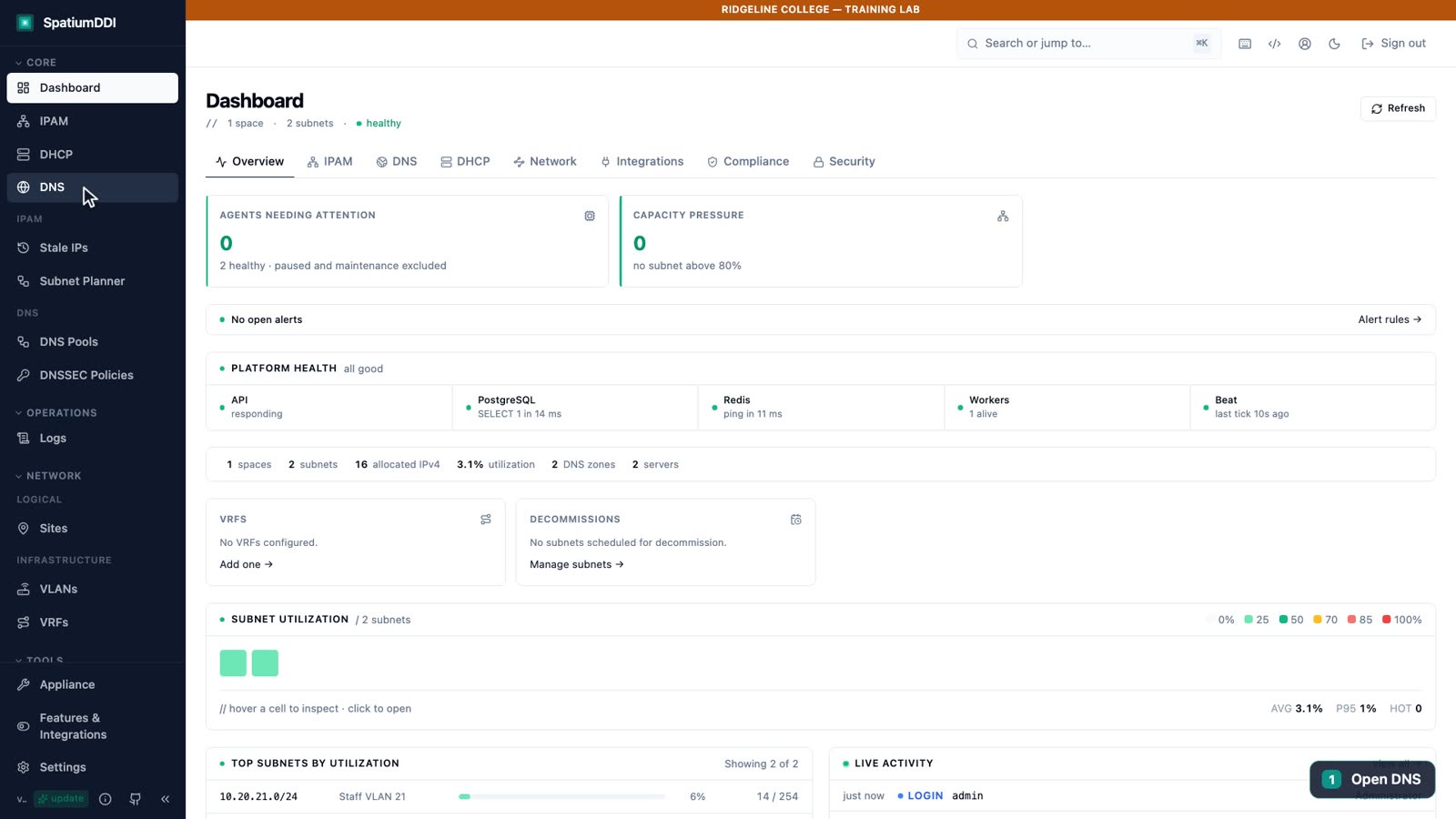
Section titled “Watch it, then try it”The video opens the default server group that the lab’s BIND9 container created, looks at the server, creates corp.example.edu, opens the zone’s Data and Zone menus and checks its drift report. The walkthrough rehearses the same clicks before Lab 2.
Transcript
0:00Module 1.4: DNS server groups and zones. You'll meet the BIND9 server that runs Ridgeline's DNS, and create the college's forward zone, corp.example.edu.
0:13Open DNS from the sidebar. SpatiumDDI organises DNS by server group: a set of servers that all serve the same zones. This default group was created automatically when the BIND9 container registered itself with the agent key.
0:28The Servers tab lists every server in the group. Our BIND9 server is active and healthy. The DNS engine is chosen per server, and each group uses a single engine: BIND9, PowerDNS or Technitium with an agent, or agentless options such as Windows DNS and the cloud providers.
0:49Across the top are the group's other tabs: zones and records, split-horizon views, access control lists, blocking lists, TSIG keys, and the options every server in the group shares, from forwarders and recursion to query logging.
1:05Now create Ridgeline's forward zone. On the Zones tab, choose Add Zone and type corp.example.edu. The defaults are right: a primary zone, forward lookup. Leave the name server and admin email blank, and SpatiumDDI fills in sensible values. The trailing dot is added for you.
1:26The zone opens with its own toolbar. The Data menu holds sync, import and export. The Zone menu holds edit, dynamic updates, sub-zones, move and delete. The record list is empty, and that's expected: SpatiumDDI writes the start-of-authority and name-server records into the served zone for you. The green badge says one of one servers is serving the zone at the current serial. The agent pushed it to BIND9 within seconds.
1:54The Drift tab asks each server what it is actually serving and compares that with the database. Here our one server matches: every record SpatiumDDI holds is being served, and nothing extra is present on the host. If a server ever drifts, this tab lists exactly which records differ, and Sync with server, in the Data menu, pushes what the server is missing.
2:17Your first zone is live. In the lab, create it yourself, then query it from a terminal with dig @127.0.0.1 -p 1053 corp.example.edu SOA. Next: Ridgeline's address plan.
Server groups
Section titled “Server groups”SpatiumDDI doesn’t manage DNS servers one at a time. It manages server groups: sets of servers that all serve the same zones. The configuration lives on the group, and the servers are its members. A group’s tabs show what it holds: Servers, Zones, Records, Views (split-horizon), ACLs, Blocking Lists, TSIG Keys and Options. Options holds the settings every member shares, from forwarders and recursion to query logging.
- Why groups. Add another agent-managed server to a group and it serves every zone the group holds, with nothing to copy. SpatiumDDI sends each change to every member, and each keeps its own authoritative copy, so there are no zone transfers between them to set up.
- One engine per group. You choose the DNS engine, or driver, on each server when you add it, and every server in a group must run the same one. SpatiumDDI refuses to move a server into a group where it would mix engines.
- Engines differ. BIND9, the default, is the only engine with split-horizon views and RPZ blocklists. PowerDNS adds ALIAS and LUA records, and Technitium serves encrypted DNS natively. Existing Windows DNS servers and cloud DNS providers join as agentless drivers. Module 3.2 helps you choose.
- Creating a group yourself. The + above the list of server groups opens New Server Group. Ridgeline doesn’t need one: its group created itself.
Servers and agent auto-registration
Section titled “Servers and agent auto-registration”The lab’s DNS server is the dns-bind9 container: BIND9 plus a SpatiumDDI agent. Nobody added it by hand.
- When the container starts, its agent presents a pre-shared bootstrap key,
DNS_AGENT_KEYfromlab/.env, to the control plane. - The control plane registers the server and hands back a token of its own, which the agent keeps rotating from then on.
- The server joins the group named by the container’s
AGENT_GROUPsetting,defaultin the lab. That group didn’t exist yet, so registration created it; that’s why its description reads “Auto-created by agent registration”.
The group’s Servers tab shows the result: dns-bind9, driver bind9, status active, with the time of its last health check. The agent reports in every 30 seconds. After three missed heartbeats (90 seconds), SpatiumDDI marks the server unreachable, and the dashboard’s Agents needing attention count goes up.
On its first registration, an agent joins the group its AGENT_GROUP names, or default if it names none. To move a server to another group later, use the group picker in the server’s edit dialog; the move survives the agent registering again.
Zones live on the group, and every server in the group serves them. Add Zone on the Zones tab asks for:
| Field | What it means | For Ridgeline |
|---|---|---|
| Zone Name (FQDN) | The zone’s name. The trailing dot is added for you | corp.example.edu |
| Type | The zone’s role (below) | Primary, the default |
| Kind | Forward lookup (names to addresses) or Reverse lookup (addresses to names). For a primary zone, it follows the name until you pick one | Forward lookup, picked from the name |
| Primary NS, Admin Email | The name server and contact in the zone’s SOA record. Primary NS must be a fully qualified host name | Blank: SpatiumDDI fills in values |
| Default TTL (seconds) | How long resolvers may cache records that don’t set their own TTL | 3600, the default |
In production, set Primary NS to a real name server, such as ns1.corp.example.edu. (a name inside the zone also needs an A record there). SpatiumDDI serves it in the zone’s SOA and NS records, and refuses a single label such as ns1. Left blank, the BIND9 agent serves a placeholder name server on 127.0.0.1: fine for the lab, but it sends anyone who follows the zone’s NS records to loopback.
As you type the name, Add Zone shows a hint under it if the name sits on a special-use or undelegated top-level domain, such as .local or .lan. It’s advice, never a refusal.
The zone Type decides where its data comes from:
- Primary: SpatiumDDI holds the zone’s records, and every server in the group serves its own copy. Almost every zone you create is primary.
- Secondary: the servers copy the zone by zone transfer from masters you list, for a zone another system owns.
- Stub: the servers keep only the zone’s name-server records, fetched from the masters you list.
- Forward: a conditional forwarder. Queries for the zone go to the forwarder addresses you list, and the zone holds no records.
Reverse zones hold PTR records under in-addr.arpa. You won’t create Ridgeline’s by hand: when you create the staff subnet in 1.5, SpatiumDDI creates 21.20.10.in-addr.arpa for it, because the subnet inherits a DNS group and zone from its block. If you do add one yourself, a name under in-addr.arpa selects Reverse lookup for you.
Once you choose Add Zone, open the zone from its row. Its header tells you about the zone at a glance:
- The name, with a PUBLIC pill:
.eduis a delegated top-level domain. Other zones read PRIVATE, UNDELEGATED or REVERSE, from the list in Settings → TLD Registry. - primary and forward, the zone’s Type and Kind, then its default TTL and serial.
- A green badge, “1/1 synced · serial …”: how many of the group’s servers serve the zone at its current serial.
Beside them are Refresh, two menus and Add Record:
| Control | What’s in it |
|---|---|
| Data | Sync with server, Import zone file, Export zone file, Import CSV / XLSX, Export CSV, Export XLSX and Download template |
| Zone | Edit Zone, Dynamic Updates, Sub-zone, Move and Delete Zone. Delegate joins them when a parent zone in the group still lacks this zone’s NS or glue records |
| Add Record | A new record in this zone. The n key opens it too |
The Records tab is empty, and that’s expected: SpatiumDDI generates the zone’s SOA and NS records for you and doesn’t list them. Within a second or two, the agent has loaded the new zone into BIND9. In the tree on the left, the group’s zones are grouped by top-level domain, so corp.example.edu sits under default → edu.
Records
Section titled “Records”Most of Ridgeline’s A and PTR records will come from IPAM. When you allocate an address with a hostname in module 1.7, SpatiumDDI writes both records and keeps them tied to the address, so let IPAM own them. You add other records yourself with Add Record on the zone:
- A name relative to the zone, such as
wwwforwww.corp.example.edu, or@for the zone’s apex. - A type: A, AAAA, CNAME, MX, TXT, NS, PTR, SRV, CAA, TLSA, SSHFP, NAPTR, LOC, SVCB, HTTPS or DNAME. ALIAS and LUA records need a PowerDNS group.
- A value, plus a priority for MX, and a priority, weight and port for SRV.
- A TTL, or blank to use the zone’s default.
How a change reaches BIND9
Section titled “How a change reaches BIND9”- The API validates the change and writes it, with its audit-log row, in one transaction, and it bumps the zone’s serial number.
- It queues one operation for each server in the group and wakes their agents.
- Each agent applies the change to its own BIND9 as a TSIG-signed RFC 2136 dynamic update, sent with
nsupdateover the container’s loopback interface, so the update never crosses the network. - BIND9 serves the change at once. There’s no zone-file rewrite, no reload and no restart.
- The agent acknowledges the operation on its next heartbeat. If a server is offline, its operations wait and apply when it comes back.
That’s the path in a group without views, like the lab’s default; in a group with views, a record change re-renders the zone instead. Structural changes take a different path. A new zone, or a change to views, ACLs or options, produces a new configuration for the group; the agent renders BIND9’s configuration, validates it with named-checkconf, checks each changed zone file with named-checkzone, and reloads. That’s the path your new zone takes, and it’s still quick: BIND9 answers for the zone within seconds.
Check it from your machine with dig @127.0.0.1 -p 1053 corp.example.edu SOA. In the reply’s header, status: NOERROR and the aa (authoritative answer) flag mean that BIND9 serves the zone itself, and the answer section holds the zone’s SOA record.
Drift: what the server really serves
Section titled “Drift: what the server really serves”SpatiumDDI’s database says what each server should serve. The zone’s Drift tab reads the zone back from every server in the group and compares the two. It’s read-only: nothing on the tab changes anything. The tab’s Refresh asks the servers again.
- In sync. A new zone reads All 1 comparable server match the database, and the server’s card says “Every record in SpatiumDDI is being served, and nothing extra is present on the host.” The records the agent writes for the zone itself, its SOA, NS and placeholder name-server address, are left out of the comparison.
- Drifted. The server’s card lists Extra on server (served, but not in SpatiumDDI: usually a manual edit on the host) and Missing on server (in SpatiumDDI, but not served yet: a change still on its way, or one the server didn’t apply).
When drift is real, fix it from SpatiumDDI rather than on the server. Sync with server, in the zone’s Data menu, is a two-way sync that never deletes: it pushes the records the server is missing, and imports records only the server has into SpatiumDDI. To get rid of a record someone added on the host, delete it there, or let the sync import it and delete it in SpatiumDDI. Sync with Servers, on the group, runs the same kind of additive reconciliation for every zone, and only a superadmin can run it. For the records IPAM manages, the subnet has its own DNS sync, which module 1.7 covers.
Create corp.example.edu and query it
You will:
- Confirm that the BIND9 server is registered and active in the group default
- Create the forward zone corp.example.edu
- Check that BIND9 answers for the zone authoritatively
Before you start: Lab 1 passes, and you're signed in as admin.
-
Open DNS in the sidebar and select the default server group.
-
On the Servers tab, confirm that
dns-bind9is listed and active. -
Open the Zones tab and choose Add Zone.
-
Enter
corp.example.eduas the Zone Name (FQDN). Keep Type Primary and Kind Forward lookup, and leave Primary NS and Admin Email blank. -
Choose Add Zone.
-
Open the zone with the icon at the right end of its row. The header shows the PUBLIC pill and, within a few seconds, the green “1/1 synced” badge. The Records tab is empty.
-
Open the Data menu, then the Zone menu, to see what each holds. Esc closes them.
-
Open the Drift tab and check that it reads All 1 comparable server match the database.
-
In a terminal, query the zone, and check that the header shows
status: NOERRORand theaaflag:Terminal window dig @127.0.0.1 -p 1053 corp.example.edu SOA
./lab/check.sh 2When a record doesn’t appear
Section titled “When a record doesn’t appear”Work through these checks in order. The first one that fails points at the problem.
- Is the zone in a group with an active server? A zone reaches only the servers in its own group, and a group with no enabled server pushes nothing. Check the group’s Servers tab.
- Is the server healthy? Check its status and last health check on the same tab. An unreachable server’s updates wait until it’s back.
- Is the record in the zone? Check the zone’s Records tab. For a record that came from IPAM, check the address in its subnet.
- Are you asking the right server? In the lab, that’s
dig @127.0.0.1 -p 1053 …. Without-p 1053, you’re asking your own machine’s resolver. - Does the server agree? Open the zone’s Drift tab.
Two more controls matter once you troubleshoot for real. The group’s Options tab turns on query logging, which feeds the DNS Queries view on the Logs page (module 2.5). Dynamic Updates, in the zone’s Zone menu, decides which clients may send their own RFC 2136 updates to the zone; authorize them by TSIG key rather than by IP address, which can be spoofed over UDP.
Knowledge check
Section titled “Knowledge check”Go deeper
Section titled “Go deeper”- DNS feature specification: server groups, moving servers between groups, zones, records and Sync with Servers
- DNS agent and container architecture: registration, the configuration long-poll and incremental updates
- DNS driver specification: what each engine supports and how it applies changes
- Getting Started: DNS: the official setup order for server groups and zones