

2.2 Sign-in: SSO, MFA and sessions
In module 2.1 you created Jordan’s account by hand. Ridgeline’s staff already have Active Directory accounts, and nobody wants a second password to forget, or a leaver whose SpatiumDDI login outlives their job.
This module covers how SpatiumDDI decides who you are: local accounts and external providers, the second factor, the password and lockout rules, and the sessions that follow a sign-in. A new installation leaves some of these protections off; in the lab you turn them on and give Jordan a second factor.
What you’ll learn
Section titled “What you’ll learn”- Choose between local accounts and LDAP / Active Directory, OIDC, SAML, RADIUS and TACACS+ providers
- Predict the order sign-in tries them in, and what group mappings do at every sign-in
- Set up two-factor authentication with an authenticator app, and keep the recovery codes safe
- Turn on account lockout and an idle-logout warning, and set the password rules for local accounts
- Revoke a session, and roll out SSO without locking yourself out
Watch it first
Section titled “Watch it first”The video opens the provider form to show where sign-ins can come from, turns on account lockout and an idle-logout warning, and looks at who’s signed in. Then Jordan enrolls an authenticator and signs in with a code. The walkthrough lets you click through the same steps before you do the lab.
Transcript
0:00Module 2.2: sign-in security. You'll harden how people sign in to Ridgeline's SpatiumDDI: stop password guessing, warn before an idle sign-out, see who's signed in, and turn on two-factor authentication.
0:15SpatiumDDI checks local accounts first, then each identity provider in priority order: LDAP or Active Directory, OIDC, SAML, RADIUS and TACACS+. A provider's group mappings decide which SpatiumDDI groups a person lands in, so access stays managed in your directory. This lab has no directory, so cancel.
0:40Local accounts follow the password policy. Out of the box that's at least twelve characters, with upper case, lower case and a digit, and none of your last five passwords. Tighten it to match your own compliance rules.
0:53Account lockout is switched off on a new installation, so turn it on. With a threshold of five, five wrong passwords within fifteen minutes lock the account for fifteen minutes. A superadmin can unlock someone early from the Users page.
1:09Sessions end after sixty idle minutes. That's a good default, but nobody likes losing a half-filled form, so give people a five-minute warning first, and save.
1:20Active Sessions shows every signed-in session: who, from where, which browser, and when it was last used. Revoke one, and its token stops working on its very next request. That's how you end a session on a lost laptop.
1:34Now Jordan turns on two-factor authentication. Sign in as Jordan, open the account page from the header, choose Set up authenticator and confirm the password. Scan the QR code with an authenticator app, save the recovery codes somewhere safe, then enter the six-digit code the app shows.
2:03From now on, Jordan's password alone isn't enough. After the password, SpatiumDDI asks for the code from the app. If the phone is ever lost, one of the recovery codes gets Jordan in, once.
2:17Ridgeline's sign-in is now much harder to attack: guessing locks an account, idle sessions warn before they end, you can see and revoke any session, and Jordan signs in with two factors. Next: the API and automation.
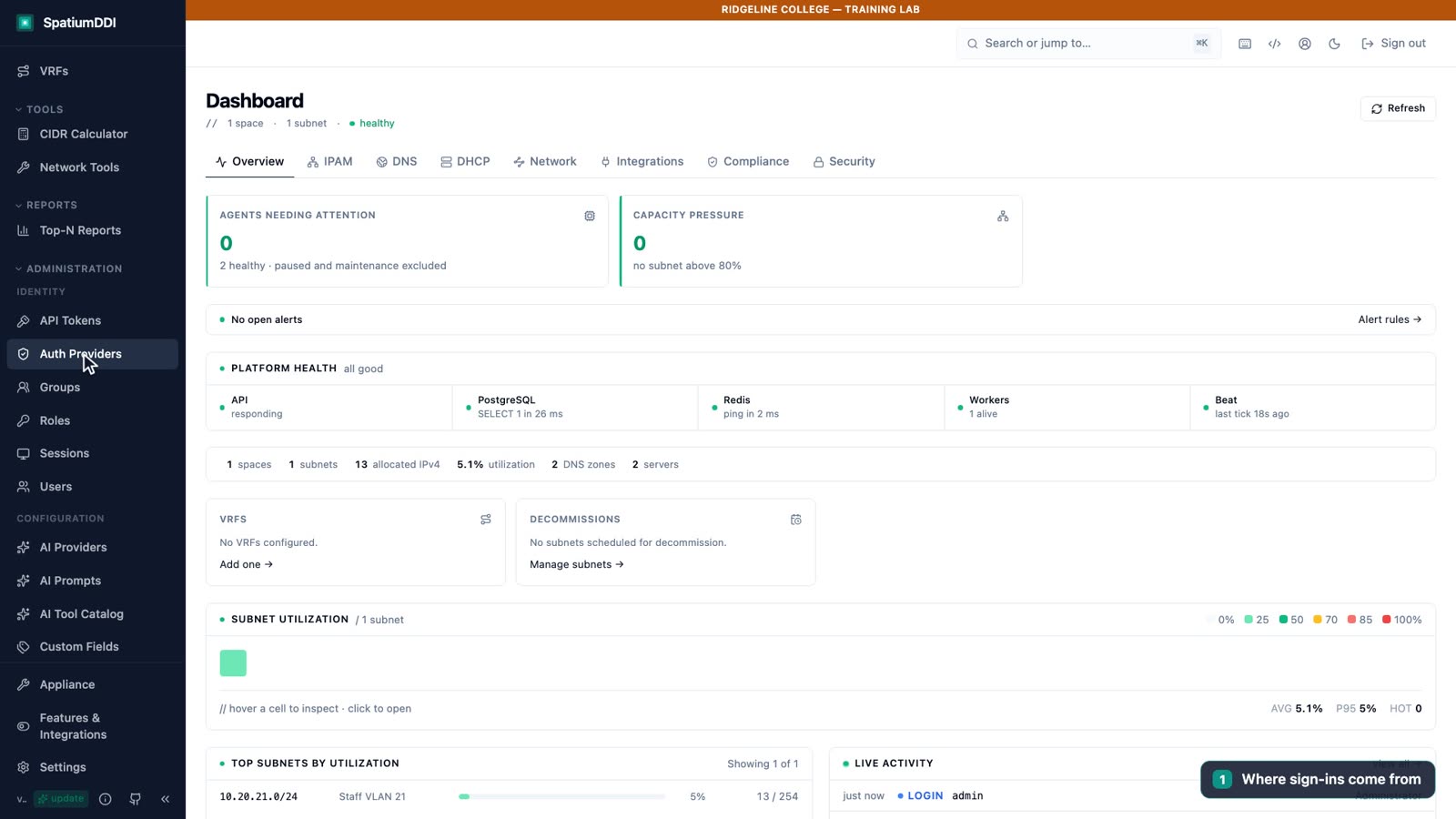
Local accounts and identity providers
Section titled “Local accounts and identity providers”Every install starts with local accounts. SpatiumDDI checks the password itself (it stores only a bcrypt hash) and can add a TOTP second factor. External providers let people sign in with the account they already have. You add them under Administration → Auth Providers with Add Provider, which opens New Auth Provider; only superadmins can open the page.
| Source | How people sign in | Typical use |
|---|---|---|
| Local account | Username and password on the sign-in page, plus TOTP if enrolled | Break-glass admins, labs, small teams |
| LDAP / Active Directory | The same form; SpatiumDDI binds to your directory to check the password | Ridgeline’s Active Directory |
| RADIUS, TACACS+ | The same form, checked against your network-device authentication servers | Network teams that already run them |
| OIDC, SAML | A Sign in with … button that redirects to the identity provider | Cloud and enterprise single sign-on |
The order sign-in follows
Section titled “The order sign-in follows”The password form and the SSO buttons are separate paths that end in one identity sync:
- Local first. If the username exists as a local account with a password, that check wins or loses on its own, and no provider is consulted.
- Then password providers, by Priority. Otherwise SpatiumDDI tries each enabled LDAP, RADIUS and TACACS+ provider in Priority order, lowest number first (the default is 100). The first definite answer wins; a provider that is unreachable or misconfigured is logged and skipped.
- SSO buttons skip the form. OIDC and SAML are redirect flows and are never tried from the password form. If you turn on a login banner that requires acknowledgement (Settings → Branding & URL), its checkbox gates the SSO buttons as well as the form. It’s a notice, not an access control: the API never sees the acknowledgement.
- Every attempt is audited. Each sign-in writes a
loginrow with its result, auth source and source IP, even for usernames that don’t exist, so password guessing shows up in the audit log.
Setting up LDAP / Active Directory
Section titled “Setting up LDAP / Active Directory”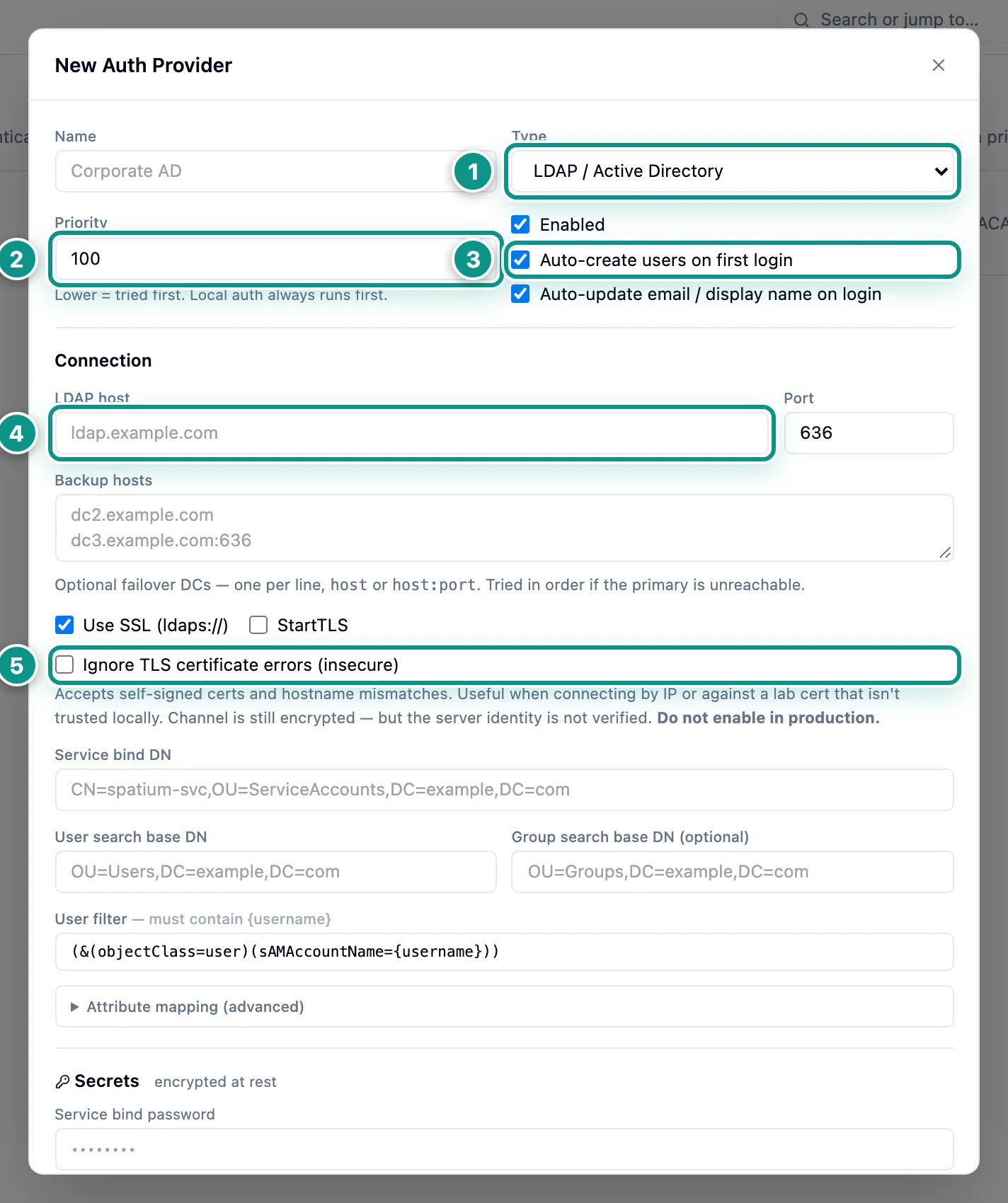
- Type: LDAP, OIDC, SAML, RADIUS or TACACS+
- Priority: lower is tried first; local accounts are always tried before any provider
- Auto-create users on first login (group mappings decide what they can do)
- LDAPS on 636 by default; add backup domain controllers for failover
- Never ignore certificate errors in production
Four groups of settings decide whether LDAP is safe and resilient:
- Transport. Use LDAPS on port 636 (Use SSL (ldaps://), on by default) or StartTLS. If your domain controllers use a private CA, point the provider at that CA’s certificate file inside the container rather than ticking Ignore TLS certificate errors (insecure), which the form itself says not to enable in production.
- Failover. List backup domain controllers under Backup hosts, one
hostorhost:portper line. They’re tried in order when the primary is unreachable. - Lookup. A service account (bind DN and password) searches under the user search base with the user filter, which must contain
{username}. The default suits Active Directory:(&(objectClass=user)(sAMAccountName={username})). - Secrets. The service bind password is encrypted at rest, and the form never shows it again.
Before anyone relies on the provider, use Test service bind to check the service account, and Test as user to look up a real person. RADIUS and TACACS+ fail over too, with one difference: a definite reject from the primary server ends the login. Only network, timeout or protocol errors move on to a backup server, and every backup shares the primary’s shared secret.
Group mappings decide what people can do
Section titled “Group mappings decide what people can do”A provider proves who someone is; its group mappings decide what they can do. Each mapping pairs an external group with a SpatiumDDI group from module 2.1, and you add mappings by editing the provider once it’s saved. The external group looks like this:
| Provider | What the external group looks like |
|---|---|
| LDAP / AD | A group DN from memberOf, such as CN=DDI-NetOps,OU=Groups,DC=corp,DC=example,DC=edu |
| OIDC | A value in the ID token’s groups claim |
| SAML | A value in the assertion’s groups attribute |
| RADIUS | The reply attribute, Filter-Id by default |
| TACACS+ | An attribute-value pair; privilege levels appear as priv-lvl:N, for example priv-lvl:15 |
Four rules follow from the design, and each one surprises someone:
- Memberships are replaced at every sign-in. The mapped groups become the user’s groups, so a manual change to an SSO user’s groups lasts only until their next sign-in.
- No match, no entry. A user whose groups match no mapping is refused, even when the identity provider accepted the password. There is no default group, so check the mappings first when a test sign-in fails.
- Auto-create is a choice. With Auto-create users on first login off, the provider signs in only accounts that already exist for it. Create one with Administration → Users → New User, choosing the provider under Signs in through instead of Local account (password). The account has no password in SpatiumDDI, and the person’s first sign-in through that provider claims it. Auto-update email / display name on login keeps those fields in step with the directory.
- An account belongs to one provider. SpatiumDDI never matches an account by username alone, so a new external user whose username already belongs to another account, local or from another provider, is refused: SSO can’t take over a local account. When someone’s identifier changes at the provider, such as an LDAP DN after an OU move, an administrator links the account again under Users → Edit → Sign-in provider.
If you upgraded from 2026.09.04-1, check the Users page for accounts with an unlinked chip. These are SSO accounts the upgrade couldn’t tie to a provider, and they can’t sign in until you link them.
OIDC and SAML need the External URL
Section titled “OIDC and SAML need the External URL”Both redirect flows build their callback addresses from the External URL in Settings → Branding & URL. Set it before you register SpatiumDDI with the identity provider. With <External URL> standing for that address, including its https://:
- The OIDC redirect URI is
<External URL>/api/v1/auth/{provider_id}/callback. - The SAML service-provider metadata is at
<External URL>/api/v1/auth/{provider_id}/metadata.
{provider_id} is the ID SpatiumDDI gives the provider when you save it. Behind a proxy that terminates TLS, the External URL must be the public https:// address. Out of the box, the shipped front end trusts no proxy and writes its own scheme, so the request alone makes SpatiumDDI think it’s on plain HTTP.
If you run your own reverse proxy, also set FRONTEND_TRUSTED_PROXY_CIDRS to the proxy’s address. The front end then passes on the proxy’s https and the real client address. SpatiumDDI’s reverse-proxy guide lists every setting and the symptoms of getting one wrong.
Two-factor authentication
Section titled “Two-factor authentication”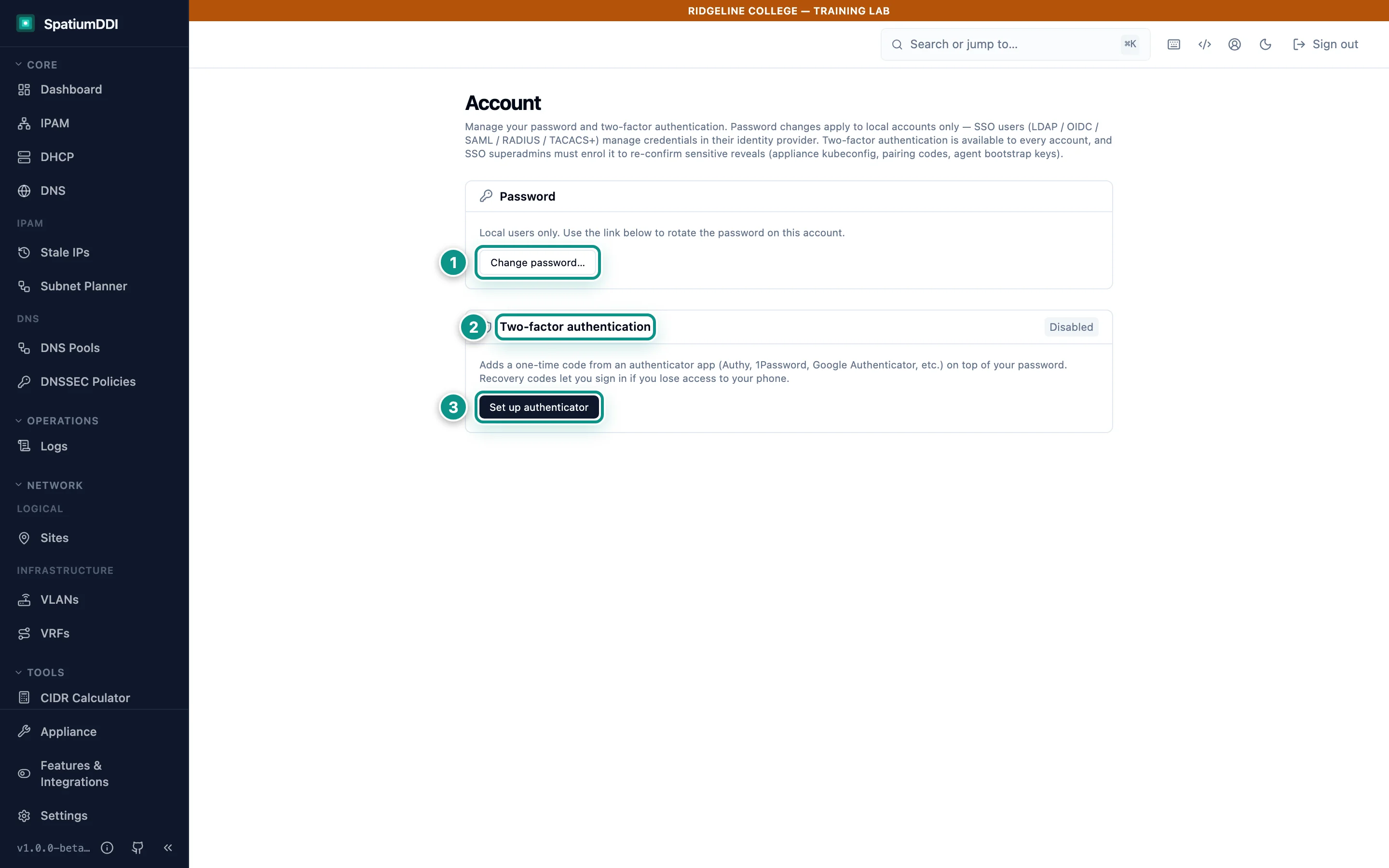
- Change password (local accounts only; SSO users change it in their identity provider)
- Two-factor status for this account
- Set up authenticator: confirm your password, scan the QR code, save the recovery codes, enter a code
Two-factor authentication (TOTP) is per person. Every account sets it up on its own Account page, which the person icon in the header opens, with Set up authenticator under Two-factor authentication.
Setup first checks that it’s really you. A local account confirms its password in Confirm your password; an LDAP, RADIUS or TACACS+ account confirms its directory password; an OIDC or SAML account is sent to its identity provider to sign in again. Then Set up two-factor authentication takes three steps:
- Scan the QR code with an authenticator app (Authy, 1Password, Google Authenticator and the like), or copy the Manual secret into it.
- Save the ten recovery codes (Copy all codes helps), and tick the box that says you have. Enable stays grayed out until you do.
- Enter the 6-digit code the app shows, and click Enable.
A setup you start but don’t finish expires after 15 minutes. Each recovery code works once, and the codes are shown only once, so keep them somewhere other than the phone, such as a password manager or a printed copy in a safe.
From then on, a local sign-in asks for a code after the password, on the Two-factor verification screen; Use a recovery code instead takes a recovery code. Five wrong codes within 15 minutes pause the second step for that account, and wrong codes also count toward account lockout.
Turning two-factor off (Disable two-factor…) or making new recovery codes (Regenerate recovery codes…) makes you prove yourself again: a local user gives their password and a current code, an SSO user a current code. No administrator can turn off someone else’s two-factor authentication. If someone loses both the authenticator and every recovery code, a superadmin has to delete the account and create it again.
When SpatiumDDI asks you to confirm it’s you
Section titled “When SpatiumDDI asks you to confirm it’s you”SSO users still sign in at their identity provider, so TOTP doesn’t change how they sign in. SSO superadmins should enroll anyway. Revealing secrets such as the agent bootstrap keys, pairing codes or the appliance kubeconfig makes you re-confirm who you are: local users with their password, SSO users with a TOTP code, because an SSO account has no local password to check.
The same confirmation guards every action that hands out lasting power:
- creating an API token (module 2.3)
- creating a superadmin, or ticking Superadmin on an existing user
- resetting a superadmin’s password
- reading an auth provider’s stored secrets
- any group, role or group-mapping change that would make someone a superadmin (module 2.1)
An SSO account must enroll an authenticator before it can create an API token. Five wrong answers within 15 minutes block these confirmations until the window ends.
Passwords, lockout and session settings
Section titled “Passwords, lockout and session settings”These settings protect local accounts; SSO users follow their identity provider’s rules. You find them in Settings, in the Security group, and only a superadmin can change them.
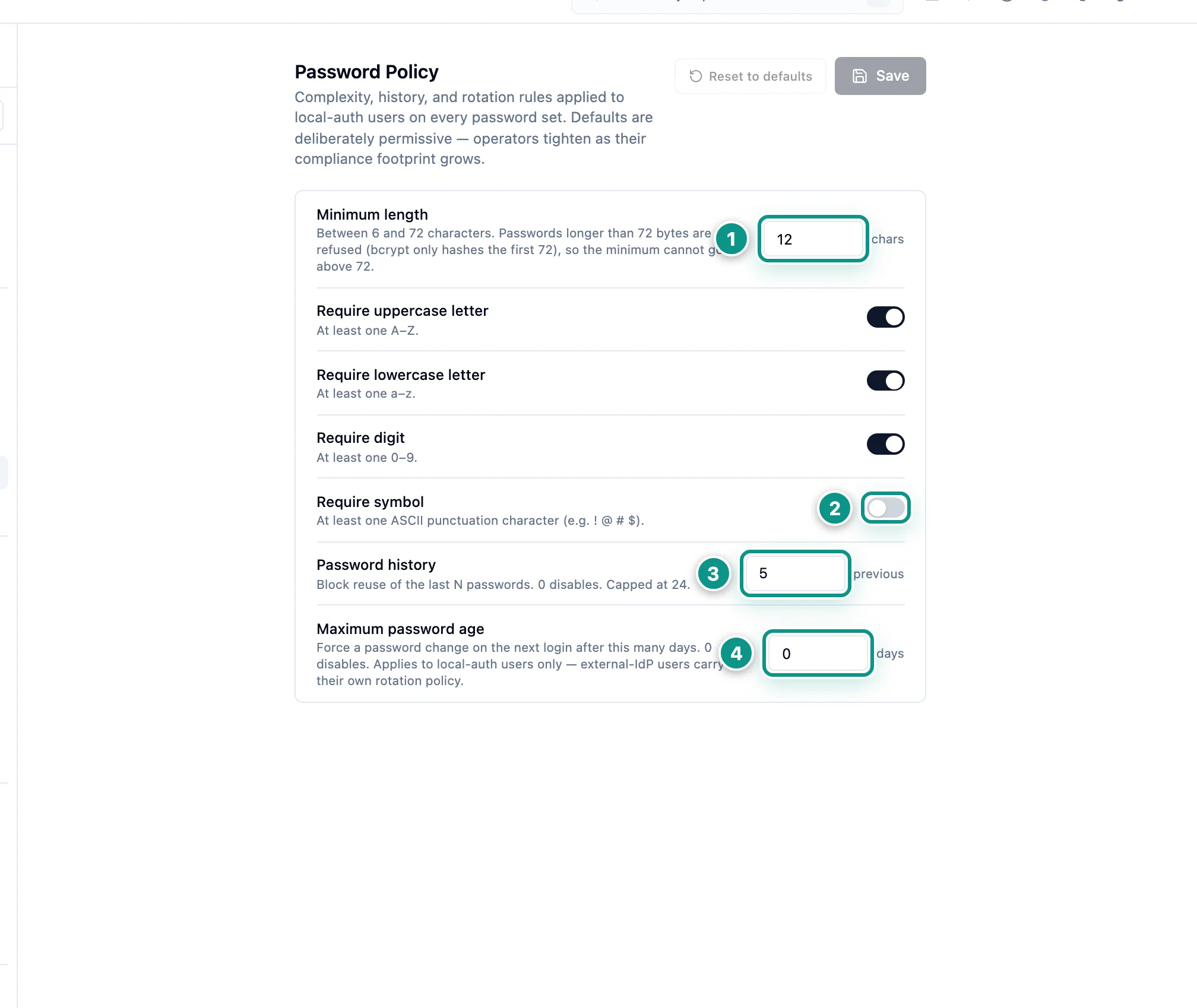
- Minimum length (default 12)
- Character classes: uppercase, lowercase, digit on; symbol off by default
- History: blocks reuse of the last 5 passwords
- Maximum age: 0 = never expires; local accounts only
| Password Policy setting | Default | Notes |
|---|---|---|
| Minimum length | 12 | 6 to 72 characters. A password longer than 72 bytes is refused, because bcrypt reads only the first 72 |
| Require uppercase letter, Require lowercase letter, Require digit | On | |
| Require symbol | Off | |
| Password history | 5 | Blocks reuse of the last N passwords; 0 turns it off; capped at 24 |
| Maximum password age | 0 (never expires) | Local accounts only |
The rules apply every time a local password is set, and the server enforces them as well as the form. The Change Password page shows them as a checklist and checks the history when you submit. The Password Policy settings call the defaults “deliberately permissive”, so tighten them as your compliance needs grow.
Account lockout and sign-in limits
Section titled “Account lockout and sign-in limits”Account Lockout ships off: a Failure threshold of 0, the default, disables it. Set a non-zero threshold before production. With 5, five wrong passwords within the Failure reset window (15 minutes) lock the account for the Lockout duration (15 minutes).
Lockout covers every local account, superadmins included; accounts from an external provider are locked by that provider instead. A superadmin can clear a lock early from the Users page, so keep more than one named superadmin: one can unlock the other.
Separately, and whether or not lockout is on, the API limits sign-in attempts:
- 30 attempts a minute from one source address (an IPv6 client counts by its /64)
- 20 failed passwords for one username in 15 minutes, whether or not the account exists
- 500 failed passwords in 15 minutes across the whole install
Each refusal answers 429 and writes a login row with the result failure.
Anyone who can reach the sign-in page can trip these limits for a username they know, and the right password is refused too until the window ends. Behind your own reverse proxy, set FRONTEND_TRUSTED_PROXY_CIDRS, or every user counts as the proxy’s address and shares one per-source budget.
Idle sessions
Section titled “Idle sessions”Session & Security holds two settings:
- Session Timeout signs a browser out after 60 idle minutes by default, and
0turns it off. The server enforces it, and background refreshes don’t count as activity, so a tab left open still runs out. API tokens aren’t affected. - Auto-Logout Warning is
0(no warning) by default. Set it to a few minutes, and the console warns that long before the timeout and lets the person stay signed in, instead of losing a half-filled form. The warning is never more than half the timeout.
Sessions
Section titled “Sessions”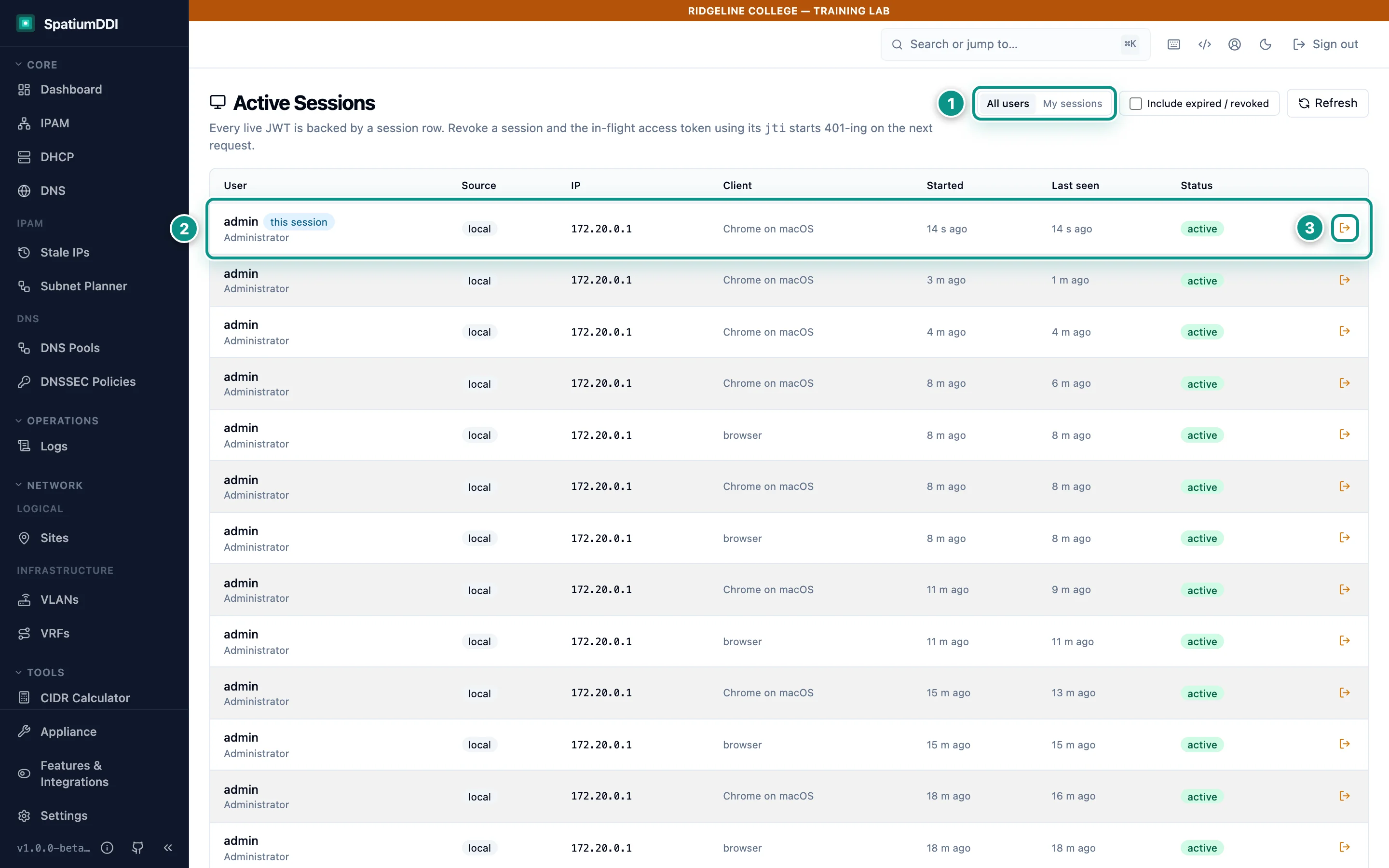
- All users, or only your own sessions
- One row per signed-in browser or client, with source and IP
- Revoke: the session's token stops working on its next request
Every sign-in creates a session. The browser holds a short-lived access token (15 minutes by default) and a refresh token (7 days), kept in an HttpOnly cookie and replaced every time it’s used.
Administration → Sessions opens Active Sessions: superadmins can switch between All users and My sessions, and Include expired / revoked shows the history. Each row shows the user, auth source, IP, client, start time, last activity and status; your own is marked this session.
The revoke button on a row ends that session: its access token is refused with a 401 on the next request, and its refresh token can’t produce new ones. Use it when a laptop is lost or stolen, or after an SSO group change you need applied now, since mapped groups only change at sign-in.
When someone leaves, clear Active on their user instead. That ends all of their sessions at once, and the account can’t sign in again through any source. Signing out ends your own session, but SAML has no single logout: signing out at the identity provider doesn’t end a SpatiumDDI session, which lasts until it goes idle, expires or is revoked.
Rolling out SSO in production
Section titled “Rolling out SSO in production”Use this order, so that nobody, including you, gets locked out:
- Serve SpatiumDDI over HTTPS and set External URL to the public
https://address. Behind your own reverse proxy, setFRONTEND_TRUSTED_PROXY_CIDRSto the proxy’s address. - Keep one local superadmin as your break-glass account. Local sign-in runs first and doesn’t depend on the identity provider. Give the account two-factor authentication, and keep its password and recovery codes in your vault.
- Build groups and roles first (module 2.1), including a read-only group for testing.
- Add the provider with TLS verified: LDAPS or StartTLS with your CA, never Ignore TLS certificate errors (insecure). Add backup hosts or servers.
- Decide on Auto-create users on first login. If it stays off, create each person’s account first, with Signs in through set to the provider. Set Priority if you run more than one password provider.
- Edit the saved provider and map every external group that should get in. Remember that no match means no entry, that memberships are replaced at every sign-in, and that a mapping to a superadmin group asks for your password.
- Test the connection from the provider form (Test service bind for LDAP), then sign in as a real user from each mapped group. Confirm the
loginrows in the Audit Log and the new row in Active Sessions. - Have SSO superadmins enroll an authenticator on their Account page before they need to reveal a secret or create an API token.
- Tighten the rules that still apply to local accounts: Password Policy, an Account Lockout threshold, and Session & Security.
- Write down offboarding: disable the person in the directory, then clear Active on their SpatiumDDI user, which ends their sessions at once. Disabling them in the directory alone doesn’t end a session that’s already open.
Hands-on lab
Section titled “Hands-on lab”Sign-in security
You will:
- Turn on account lockout after five wrong passwords
- Warn people five minutes before an idle sign-out
- Enroll Jordan in two-factor authentication with a real authenticator app, and save the recovery codes
- Sign in as Jordan with a code from the app
Before you start: Sign in as admin. Lab 7 must be done, so that jsmith exists with the password Jordan-Helpdesk-2026. Have an authenticator ready: an app on your phone, such as Google Authenticator or Authy, or a password manager that keeps one-time codes. Use a private browser window for Jordan, so your admin session stays open; if you use one window for both accounts, reload the page after each switch.
- Open Settings and, in the Security group, choose Account Lockout.
- Set Failure threshold to
5, leave Lockout duration and Failure reset window at 15 minutes, and click Save. - Choose Session & Security. Leave Session Timeout at 60 minutes, set Auto-Logout Warning to
5, and click Save. - Open a private browser window at
http://localhost:8077and sign in asjsmithwith the passwordJordan-Helpdesk-2026. - Click the person icon in the header to open Account. Two-factor authentication reads Disabled; click Set up authenticator.
- In Confirm your password, enter Jordan’s password and click Continue.
- In Set up two-factor authentication, scan the QR code with your authenticator app. If you use a password manager on the computer instead, copy the Manual secret into it.
- Click Copy all codes, paste the ten recovery codes into your password manager or a file you keep, and tick “I have saved these recovery codes somewhere safe.”
- Enter the 6-digit code the app shows for SpatiumDDI and click Enable. The card now reads Enabled and “10 recovery codes remaining.” If the code is refused, check that your phone sets its clock automatically: the codes depend on the time.
- Click Sign out in the header, then sign in as
jsmithwith the password again. - On the Two-factor verification screen, enter the current code from the app under Authenticator code and click Verify. The dashboard opens, and Jordan is signed in with two factors.
- Optional: in your admin window, open Administration → Sessions with All users selected. Jordan’s session from step 11 is listed with its IP, browser and last activity, and your own row is marked this session. Tick Include expired / revoked to also see the session Jordan ended by signing out in step 10.
./lab/check.sh 11Knowledge check
Section titled “Knowledge check”Go deeper
Section titled “Go deeper”- Auth and permissions: every provider type, TOTP and the confirmations it backs, sign-in throttles, provider priority and account linking
- Running behind a reverse proxy: the External URL,
FRONTEND_TRUSTED_PROXY_CIDRS, and the SSO and sign-in symptoms of a misconfigured proxy - Getting Started §2: where auth providers fit in the setup order, and how to know they work
- System administration §6: the password, lockout and session settings, and how the idle timeout is enforced
- REST API §3: sign-in, the MFA challenge, refresh and rotation
- Security hardening: accounts, MFA and sessions in the production checklist