

2.1 Users, groups and roles
Ridgeline’s library helpdesk answers “which address does the printer have?” all day, and it shouldn’t be able to change anything while it looks. A shared admin login can’t enforce that, and it turns the audit log into a list of changes made by “admin”. This module shows how SpatiumDDI decides what each person may do, how to hand out the least access that does the job, and how to prove that the server enforces it.
What you’ll learn
Section titled “What you’ll learn”- Explain how users, groups, roles and permission entries combine into a person’s access
- Pick the right one of the 12 built-in roles, and clone one when none fits
- Scope a permission to a single subnet, block or other object, and know where scoping stops
- Decide when to use the Superadmin flag, SSO group mappings and time-bound grants
- Prove that a read-only group is read-only, and find its refusals in the audit log
Watch it first
Section titled “Watch it first”The video adds Jordan Smith to a read-only Helpdesk group, then signs in as Jordan: the console disables what the Viewer role can’t do, and the server refuses a superadmin-only page and records the refusal. The walkthrough lets you click through the same flow before you do the lab.
Transcript
0:00Welcome to Part 2, and module 2.1: users, groups and roles. Ridgeline's library helpdesk needs to look things up in SpatiumDDI without being able to change them. You'll set that up, and then prove it works.
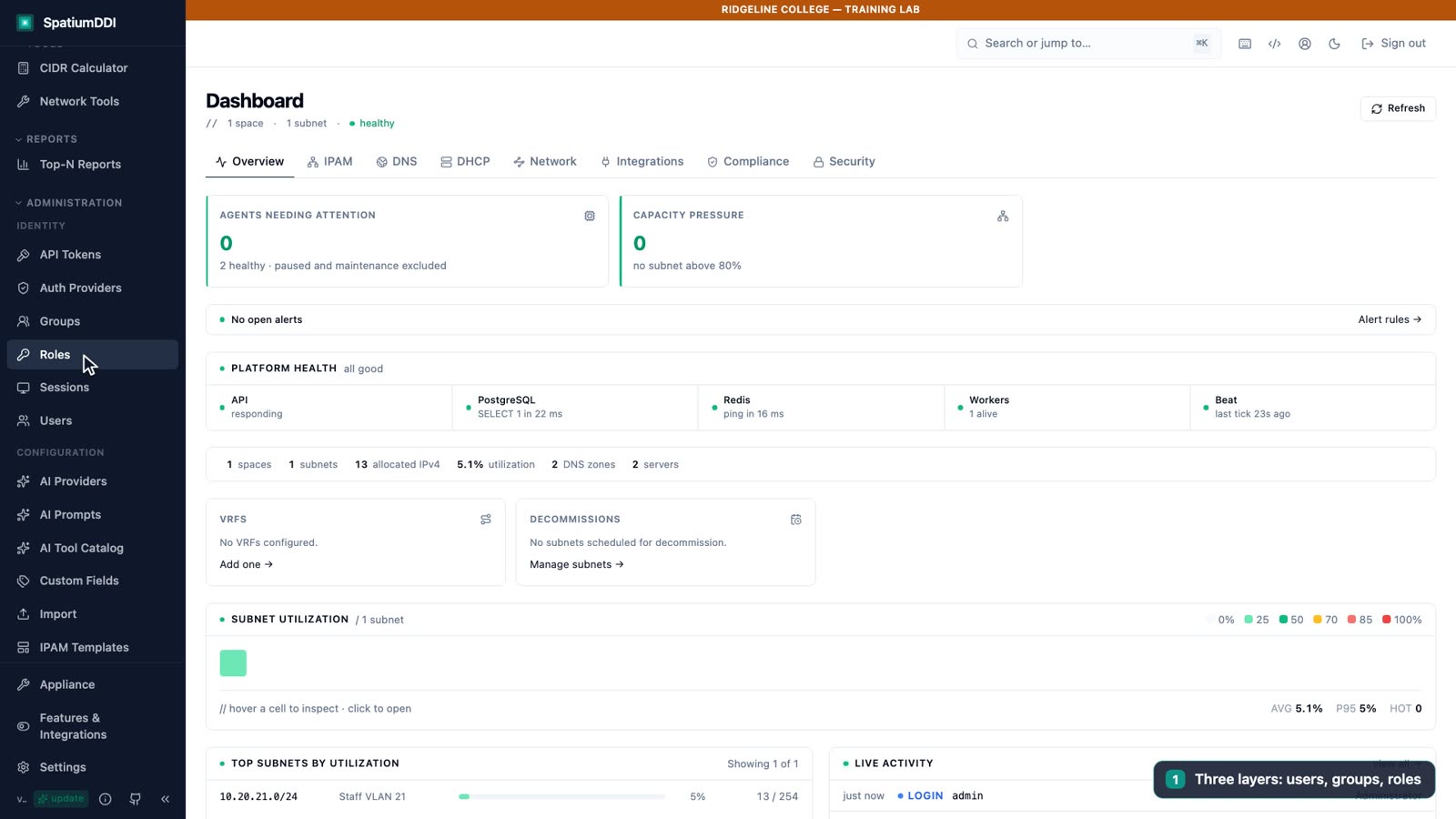
0:15Access in SpatiumDDI has three layers. Users belong to groups, groups carry roles, and roles hold the permissions. You never grant a permission to a user directly. Under Administration, Roles lists twelve built-in roles, from Viewer, which can read everything, up to Superadmin.
0:35Open a role to see its permissions. Each line is an action, such as read, write, delete or admin, on a type of resource, and it can be narrowed to one specific object, like a single subnet. Built-in roles are read-only, so to customise one, clone it and edit the copy.
0:54Jordan Smith is joining the library helpdesk. In Users, choose New User and fill in the username, display name and email, with a temporary password. Leave Require password change on first login ticked, so the temporary password works exactly once. And leave Superadmin unticked: it bypasses every permission check.
1:16Now the group. In Groups, choose New Group and name it Helpdesk. Tick the Viewer role for read-only access to everything, add Jordan as a member, and save. To change what the helpdesk can do later, you edit this one group, and every member picks up the change.
1:34Time to prove it. Sign out, and sign in as Jordan with the temporary password. SpatiumDDI immediately asks for a new one, exactly like the admin account did on day one.
1:50Jordan can browse everything: the address plan, the zones, the scopes. The actions the Viewer role doesn't allow are switched off: Allocate IP is greyed out, and its tooltip names the permission it needs. The real gatekeeper is the server, though. Open a page the role doesn't cover, like Users, and the server refuses, says why, and records the refusal in the audit log.
2:14Ridgeline's helpdesk now has read-only access, managed through a single group. In production, you'd usually let single sign-on fill these groups from your directory. That's the next module: sign-in with SSO, multi-factor authentication and sessions.
Four layers: users, groups, roles, permissions
Section titled “Four layers: users, groups, roles, permissions”Access in SpatiumDDI is group-based. Nothing is ever granted to a user directly:
- A user belongs to one or more groups.
- A group carries one or more roles.
- A role holds a list of permission entries.
A person’s access is the union of every entry in every role of every group they belong to: if any single entry allows an action, they may do it. So you manage groups, not people. When the helpdesk needs more or less access, you edit one group and every member picks up the change.
Anatomy of a permission entry
Section titled “Anatomy of a permission entry”Each entry has three parts. The Roles page shows them as the columns of the role’s permission editor.
| Part | Required | Meaning |
|---|---|---|
action |
Yes | read (view, list, export), write (create, update), delete, admin (read, write and delete), approve (the second person’s decision on a change request, which admin doesn’t include) or * (any action) |
resource_type |
Yes | The kind of object: ip_space, ip_block, subnet, ip_address, dns_group, dns_zone, dns_record, dhcp_scope, audit_log, user, role, settings, api_token and many more, or * for all of them |
resource_id |
No | One specific object. Leave it empty to cover every object of that type |
The 12 built-in roles
Section titled “The 12 built-in roles”SpatiumDDI creates these roles on first start. You can’t edit or delete a built-in role. Its editor opens read-only, and Clone gives you an editable copy.
| Role | What it grants |
|---|---|
| Superadmin | Every action on every resource type (* on *) |
| Viewer | read on everything; it changes nothing |
| IPAM Editor | admin on spaces, blocks, subnets, addresses, address sets, VLANs, NAT mappings, custom fields, IPAM templates, and customers, sites, providers and services |
| DNS Editor | Creates, edits and deletes zones, records, views, ACLs and blocklist entries, and manages the TLS certificate store; reads DNS pools. DNS server groups, servers, TSIG keys and DNSSEC stay with superadmins |
| DHCP Editor | admin on scopes, pools, static assignments, client classes, option templates and MAC blocks. DHCP servers and server groups stay with superadmins |
| Network Editor | admin on network devices, scans, packet capture, block sync, network tools, ASNs, VRFs, circuits and the other network-modeling objects |
| Auditor | read on conformity, the audit log, IPAM (spaces, blocks, subnets, addresses), DNS (server groups, zones, records), DHCP scopes and TLS certificates, for an external auditor |
| Compliance Editor | admin on conformity policies; read on the audit log and on the same IPAM, DNS and DHCP objects as Auditor |
| Address Set Editor | admin on address sets: edit a named slice of a subnet without write on the whole subnet |
| Change Approver | approve and read on change requests: the second person in two-person approval (module 2.4) |
| Requester | write and read on provisioning requests: ask for an IP, subnet, record or reservation, without the power to create one. It carries no read on subnets, blocks, zones or scopes, so also grant read on the ones a department may request into |
| Appliance Operator | admin on the OS appliance’s management surface and on the TLS certificate store, without superadmin rights over DDI data. Fleet management still needs a superadmin |
Three of these only matter once their feature module is on. Change Approver needs Approval workflows (governance.approvals) and Requester needs Self-service request portal (governance.requests); both are off by default, and the portal adds Requests to the sidebar when you turn it on. Address Set Editor needs Address sets (ipam.address_sets), which is on.
If you upgraded from 2026.09.04-1, review who holds DNS Editor and DHCP Editor. Before 1.0.0-beta.1, DNS Editor could write records and nothing else, and DHCP Editor couldn’t even create a scope; now both really create and delete zones, scopes and the rest of the list above.
Network Editor is the role that can start and delete packet captures. Listing and downloading a finished capture needs only read, though, and Viewer’s read-everything entry includes it. If you turn the Packet capture module on (it’s off by default), don’t give Viewer to people who mustn’t see captured traffic, which can include plaintext credentials.
Custom roles: clone, then narrow
Section titled “Custom roles: clone, then narrow”When no built-in role fits, don’t stretch one. Open Administration → Roles, use Clone on the closest role, rename the copy, and change its permission rows. Each row is an action, a resource type and, optionally, one object; Add row adds another.
A custom role has to name every type it should see. Read-only access to IPAM takes read on ip_space, ip_block, subnet and ip_address; read-only DNS takes read on dns_group, dns_zone and dns_record, because the DNS page starts at the server groups. A custom role from 2026.09.04-1 that relied on one IPAM or DNS grant to read the rest loses those reads after the upgrade, so add the missing types.
Delegated administration has a ceiling. A user who isn’t a superadmin can only grant entries they already hold through a role (a time-bound grant doesn’t count), and never a wildcard (*). An IPAM Editor who can edit roles still can’t create a *-on-* role and give it to their own group; the server refuses with a 403 and writes a denied audit row.
The same ceiling applies when they add or remove group members, detach roles, or delete groups or roles, so only a superadmin can change the members of a group that carries a wildcard.
Scope an entry to one object
Section titled “Scope an entry to one object”The third column of a permission row normally covers the whole resource type. Pick one object there instead and the entry is scoped by its resource_id. That opens the one object for a subnet, an IP block or an IP space (and for a customer, site, provider or address set). For any other type, such as one DNS zone or one DHCP scope, a scoped entry doesn’t open the object on its own.
Suppose Ridgeline’s library IT technician should manage Staff VLAN 21 and nothing else. A clone of Viewer could hold:
| Action | Resource type | Resource |
|---|---|---|
read |
* |
Every object, so the technician can look anything up |
admin |
subnet |
Staff VLAN 21 only |
Scoped entries fail closed, and a subnet-scoped entry reaches a short list of actions. With this role, the technician can edit Staff VLAN 21 and add addresses to it with Allocate IP in Specific IP mode. Next available, bulk allocate, editing or deleting an existing address, DNS sync, and resize, split, merge and delete are all refused. A grant on a block or space doesn’t reach down into the subnets inside it, either.
For full address management in part or all of a subnet, use an address set covering the range and the Address Set Editor role scoped to that set: it can create, allocate next, bulk allocate, edit and delete addresses inside the set. Whichever you choose, sign in as a test member before you hand the role out, and try the changes the job needs plus one that should be refused, the way Lab 7 does for Viewer.
Superadmins, SSO and temporary access
Section titled “Superadmins, SSO and temporary access”Superadmin is a checkbox on the user, in New User and when you edit a user. It bypasses every permission check, so a superadmin’s requests never produce a permission denied audit row. Membership in a group whose role grants * on * (the built-in Superadmin role or a clone of it) counts as superadmin too.
Making someone a superadmin asks you to confirm who you are. Ticking Superadmin adds a box for your password (or an authenticator code, for an SSO account): “A superadmin’s password passes every re-confirmation, so creating one needs yours.” A group or role change that would make its members superadmins asks the same: “This change makes one or more members superadmins. Confirm it’s you to save it.”
Keep superadmins to a few named people with two-factor authentication, and never share the account. SpatiumDDI refuses any change that would leave no active superadmin, such as deactivating, demoting or deleting the last one, with a 409 and a denied audit row.
A deactivated account can’t sign in. Clearing Active when you edit a user locks the account and ends all its sessions at once.
Single sign-on fills groups for you. Each LDAP, OIDC, SAML, RADIUS or TACACS+ provider has group mappings that pair an external group with a SpatiumDDI group. At every sign-in, the user’s memberships are replaced by the mapped groups, and a user whose groups match no mapping is refused. Mapping an external group to a superadmin group asks for your password too. Design your groups and roles first, then map them (module 2.2).
The API also supports time-bound grants (/api/v1/groups/time-bound-grants): a group gets an action on a resource until an expiry date, with a recorded reason.
The server enforces, the audit log remembers
Section titled “The server enforces, the audit log remembers”To see what an account can do, sign in as it. A script can ask GET /api/v1/auth/me/permissions for the caller’s own effective grants; the console reads the same endpoint to decide which buttons to disable.
Least privilege at Ridgeline
Section titled “Least privilege at Ridgeline”Start every group at Viewer and add only what the job needs. A starting design:
| Group | Members | Roles | Why |
|---|---|---|---|
Helpdesk |
Library helpdesk (Jordan) | Viewer | Looks up addresses, zones and scopes; changes nothing (Lab 7) |
NetOps |
Network team | IPAM Editor, DNS Editor, DHCP Editor | Day-to-day DDI changes; servers and server groups stay with platform admins |
Library IT |
Library technician | A Viewer clone plus admin on Staff VLAN 21 |
One subnet, tested before use |
Audit |
The college’s auditor | Auditor | Evidence without configuration access |
Platform admins |
Two named administrators | Superadmin | Users, settings, servers and backups, with two-factor authentication |
A few rules keep the design honest:
- Grant access to groups, and give every person a named account. Never share a login.
- Keep automation separate. A script gets its own API token with scopes and an expiry (module 2.3), never a person’s password.
- Keep one local superadmin that doesn’t depend on SSO, for the day the identity provider is down.
- Review group members and superadmins on a schedule, and read the audit log’s
deniedrows.
Hands-on lab
Section titled “Hands-on lab”A read-only helpdesk
You will:
- Create Jordan Smith's account with a forced password change
- Create the Helpdesk group with the built-in Viewer role
- Sign in as Jordan and see the console and the server refuse what Viewer can't do
- Find the refusal in the audit log
Before you start: Sign in as admin. Lab 3 must be done, so that Staff VLAN 21 exists. A private browser window makes switching between admin and Jordan quicker.
- Open Administration → Users and click New User.
- Enter Username
jsmith, Display NameJordan Smith, Emailjsmith@corp.example.eduand the temporary PasswordWelcome-Ridgeline-1. Leave Signs in through at Local account (password), leave Require password change on first login ticked and Superadmin clear, then click Create. - Open Administration → Groups and click New Group.
- Enter Name
Helpdeskand DescriptionLibrary helpdesk (read-only). Under Roles tick Viewer, under Members tickjsmith, then click Save. - Click Sign out in the header (or open a private window) and sign in as
jsmithwith the temporary password. - On the Change Password page, enter the temporary password as the current one and
Jordan-Helpdesk-2026as the new one, twice, then click Set New Password. If you used the same tab as admin, reload the page now, so the console picks up Jordan’s own permissions. - Open IPAM and select
10.20.21.0/24. Allocate IP is grayed out; hover over it to read “Requires write permission on this subnet or on an address set in it”. - Open Administration → Users. The page says “You don’t have permission to see users (Superadmin required).” User management is superadmin-only, so the server refused the request and recorded the refusal.
- Sign out and sign back in as
admin, or close the private window. - Open Administration → Audit Log and type
Jordanin the filter under User. The newest rows show Jordan’slogin, the password change (anupdateonuser) and anaccessonsuperadminwith the resultdenied.
./lab/check.sh 7Knowledge check
Section titled “Knowledge check”Go deeper
Section titled “Go deeper”- Permissions model: the entry grammar, the evaluation rules, every built-in role’s exact permissions, and “IPAM: each route needs its own type” and “DNS: each route needs its own type”
- Auth and permissions: where permission checks sit in the sign-in and token stack, and which changes ask you to confirm your password
- REST API §4, Authorization: server-side enforcement and the permissions introspection endpoint
- Data model: how users, groups and roles are stored
- Per-type grants for IPAM (#3058) and DNS (#3073): why a custom role must list each type it reads
- Security hardening: least privilege as part of the production checklist