

1.8 Everyday IPAM
You build the address plan once; you work in it every day. Someone needs to know where a MAC address lives, a lab needs ten addresses before lunch, and the next VLAN needs a free /24. This module covers the tools that turn those jobs into seconds of work, and the previews and confirmations that stop a bulk change from doing damage.
What you’ll learn
Section titled “What you’ll learn”- Find any address, name, MAC address or subnet with the command palette
- Bulk-allocate a range from a hostname template, read the preview before you commit, and bulk-edit existing addresses
- Find free space for a new subnet, and check the math with the CIDR calculator
- Export and import address data, and choose between resizing, splitting and merging a subnet
Video and walkthrough
Section titled “Video and walkthrough”The video finds print-01 with Ctrl+K, bulk-allocates Ridgeline’s ten lab PCs, looks for free space in the campus block, and tours the CIDR calculator and the export menu. The walkthrough replays the same clicks.
Transcript
0:00Module 1.8: everyday IPAM. These are the tasks you'll repeat every day: finding anything in seconds, allocating many addresses at once, finding free space for a new subnet, and exporting what you've built.
0:15Start with search. Press Ctrl+K anywhere and type part of a name, an address or a MAC address. Pick the result, and SpatiumDDI opens the subnet with that address highlighted. Once you have thousands of subnets, this beats clicking through the tree.
0:32Ridgeline's library is getting ten lab PCs. From the subnet's Tools menu, choose Bulk allocate. Set the range from .30 to .39, and a host name template of lab-pc-{n:02d}. The preview shows exactly what will be created, including DNS records, before anything is written.
0:54Everything checks out, so commit. Ten addresses, ten A records and ten PTR records, created in one step, and every change lands in the audit log.
1:05Planning the next VLAN? Select the campus block and use Find Free. Ask for a /24, and SpatiumDDI lists unused ranges, each ready to become a subnet with one click.
1:18For quick subnet maths, open the CIDR calculator from the Tools section. It runs entirely in your browser: paste any IPv4 or IPv6 range and get the mask, the wildcard, the usable range and a binary breakdown.
1:33Finally, exports. From any space, block or subnet, the export menu produces CSV, JSON or Excel files, or a print-ready PDF report, which is handy for auditors and change tickets.
1:48That completes part one. Ridgeline College now has DNS, an address plan, DHCP, named hosts, a reservation, and a lab of ten PCs. Part two turns to running SpatiumDDI as a team, starting with users, groups and roles.
Find anything with Ctrl+K
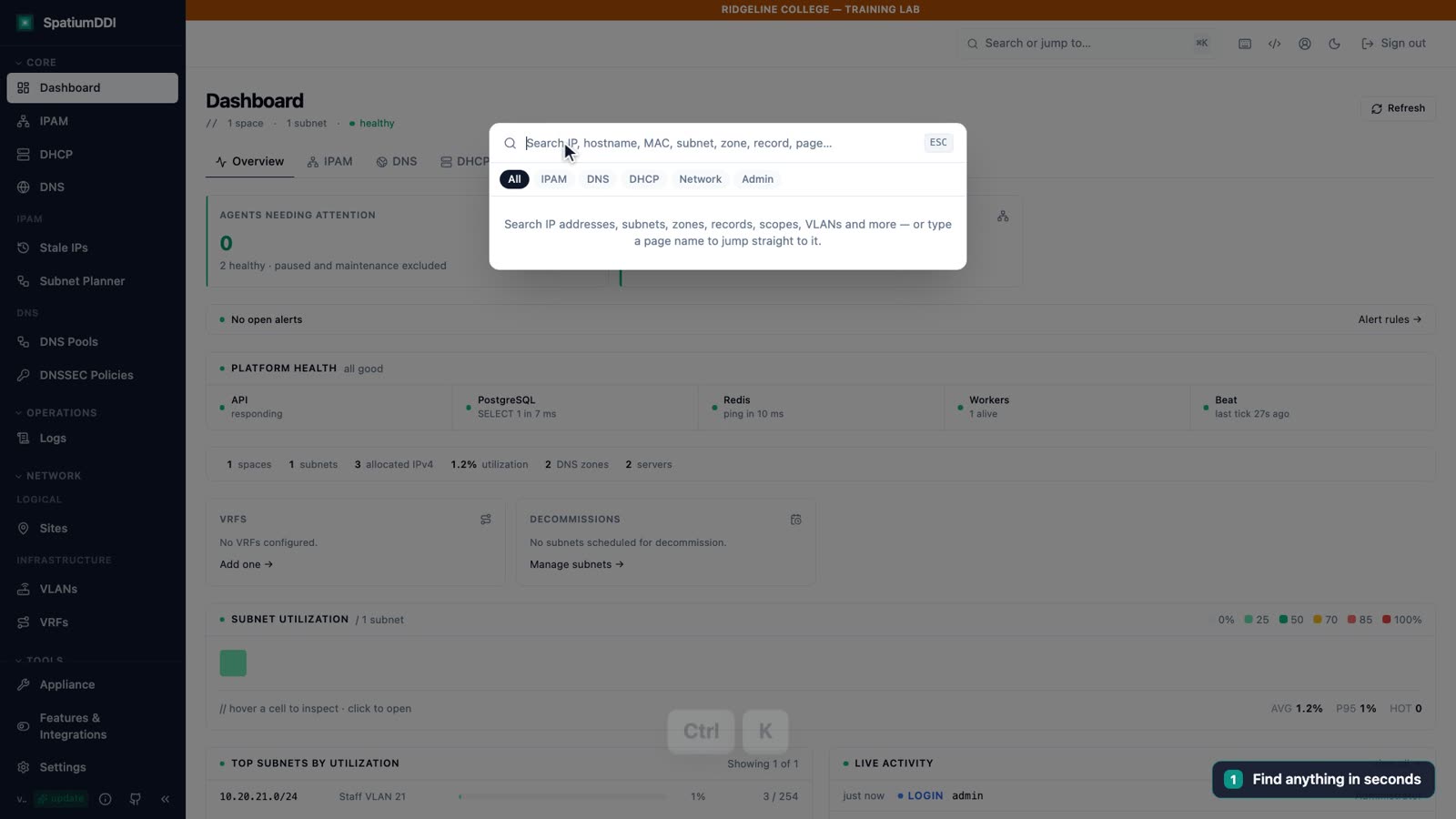
Section titled “Find anything with Ctrl+K”Press Ctrl+K (⌘K on macOS) anywhere, or click Search or jump to… in the header, and type what you have. The palette’s placeholder says what it covers: “Search IP, hostname, MAC, subnet, zone, record, page…”. It works out what kind of query you typed:
| You type | For example | It finds |
|---|---|---|
| An IP address | 10.20.21.10 |
The address, its subnet and block, DNS records that point at it, reservations |
| A CIDR | 10.20.0.0/16 |
Subnets and blocks inside the range |
| A MAC address | 52:54:00:12:34:56 |
Addresses and DHCP reservations |
| Text | print-01 |
Names, hostnames, FQDNs, record values, descriptions |
Pick an address and SpatiumDDI opens its subnet with that row highlighted. MAC matching ignores separators, so a MAC copied from a switch in any notation finds the record. Scope chips narrow the search to IPAM, DNS, DHCP and so on, and results only ever include what your role can read. More search habits are in the tips.
Bulk allocate from a name template
Section titled “Bulk allocate from a name template”Ten Allocate IP dialogs in a row invite typos. On a subnet, Tools → Bulk allocate… fills a contiguous range in one pass (Range start to Range end) and names each address from a Hostname template:
| Token | Gives | Over .30–.39, Iterator start 1 |
|---|---|---|
{n} |
A counter that starts at Iterator start | 1 … 10 |
{n:02d} |
The counter, zero-padded to two digits ({n:03d} pads to three) |
01 … 10 |
{n:x} |
The counter in hexadecimal | 1 … a |
{oct1} to {oct4} |
One octet of the address | {oct4} gives 30 … 39 |
So lab-pc-{n:02d} over 10.20.21.30–10.20.21.39 gives lab-pc-01 to lab-pc-10, and lab-pc-05 lands on 10.20.21.34.
Preview is the safety net. Before anything is written, it counts the addresses it will create and the conflicts it found, and marks sample rows as create, in use, dynamic pool or FQDN collision. On collision decides whether conflicting addresses are skipped or stop the whole run. Create DNS records (forward A/AAAA + reverse PTR) is ticked by default, so every address gets its records exactly as if you’d allocated it by hand.
The commit button says what it will do (Allocate 10 IPs). One run takes at most 1024 addresses, and the audit log records it with the action bulk_allocate.
Edit many addresses at once
Section titled “Edit many addresses at once”Bulk allocate creates rows; bulk edit changes rows you already have. In a subnet’s address table, tick the rows you want (tick one, then Shift+Click another to select every row in between) and open the bulk edit. Every field has its own checkbox, and only the fields you tick are changed:
- The status: for example, mark a batch of retired hosts
deprecated. - The description and custom fields.
- Tags, either merged with each row’s existing tags or replacing them all.
- The DNS zone: moving addresses to another zone moves their DNS records in the same request.
Tags are free-form key/value labels. You set them here rather than in the single-address forms, and chips above the address table filter on them.
Find free space for the next VLAN
Section titled “Find free space for the next VLAN”When Ridgeline adds a VLAN, the first question is which /24 is free. Select the block and open its Tools menu → Find Free… (on a space, Find Free… is a header button). The dialog, “Find free space in block 10.20.0.0/16”, asks for a Prefix length (24 by default) and how many Max candidates to list; click Find. The results list candidate CIDRs with the number of free addresses in each, and Create subnet here passes your pick to the New Subnet form. The New Subnet form can also do the search itself: switch it from Manual CIDR to Find by size.
Room inside a subnet is a different question. The Stale IPs report, in the sidebar under IPAM, lists allocated addresses that nobody has seen for 90 days by default: your candidates to reclaim. Deprecating one from the report keeps it allocated, and Next available still skips it; delete the row to give the address back. The IPAM tips explain what the report leaves out.
The CIDR calculator
Section titled “The CIDR calculator”For quick subnet math, open CIDR Calculator from the Tools section of the sidebar. Give it an IPv4 or IPv6 address or CIDR, and it shows the network, netmask, wildcard mask, broadcast address, first and last usable addresses, address counts and a binary breakdown. It runs entirely in your browser and sends nothing to the server, so it’s safe to use on ranges you haven’t recorded anywhere yet.
Import and export
Section titled “Import and export”Exports are for auditors, change tickets and other tools. On a subnet, the Import / Export menu offers Export .csv, Export .json and Export .xlsx, plus Print / PDF… for a print-ready report. Spaces and blocks have an Export menu with the same formats. On all three, Include IP addresses decides whether the addresses go into the file.
The subnet’s menu also imports addresses from CSV, JSON or Excel files (Import IP addresses…). An import always previews first, marking each row as a create, an update, a conflict or an error, and under Conflict strategy you choose Fail if any IP already exists, Skip existing IPs or Overwrite existing IPs. Imported rows with a hostname publish A and PTR records like any other allocation, and static_dhcp rows with a MAC get their reservation, as in module 1.7. To bring whole subnet lists across from another IPAM, use the import button in the IPAM tree header instead; module 3.6 covers migrations.
Reshape a subnet: resize, split, merge
Section titled “Reshape a subnet: resize, split, merge”Networks change, and three entries on a subnet’s Tools menu change its CIDR. Each one rewrites the network definition that addresses, scopes and records hang off, so each one shows a preview first and makes you type a CIDR to confirm.
| Tool | What it does | Rules |
|---|---|---|
| Resize… | Grows the subnet, for example from /24 to /23 | Grow only. The old CIDR must sit inside the new one, which must fit in the block and overlap nothing. To shrink, delete and recreate |
| Split… | Breaks the subnet into aligned children with a longer prefix | The preview shows each child’s addresses, DNS records, scope and pools. Type the parent CIDR, then Confirm split |
| Merge… | Joins contiguous sibling subnets into one | The preview shows the merged CIDR, and the DHCP scope is re-bound to it. Type the merged CIDR, then Confirm merge |
The resize preview shows the blast radius: addresses, DHCP scopes and leases, DNS records, and reverse zones to create. It doesn’t stretch DHCP pools into the new space, and it never resizes the parent block for you; if the block is too small, resize the block first. Blocks have Resize… on their own Tools menu.
The subnet’s Tools menu has three more entries you’ll meet in daily work:
- Clean Orphans purges, in one pass, the addresses you marked with Mark as Orphan (module 1.7).
- Reconcile (IP discovery) compares IPAM with the subnet’s last discovery sweep, for subnets where ping and ARP discovery is turned on (it’s off by default).
- Scan with nmap starts an nmap scan of the subnet. The Nmap scanning feature ships turned off, so the scan runs only after you turn it on in Features & Integrations.
Discovery is off by default because unsolicited probes can trip an intrusion-detection system. For segments with fragile devices, such as medical or plant-floor equipment, mark the subnet Do not probe: discovery and nmap then leave it alone entirely. The IPAM tips explain how the flag inherits.
Hands-on lab
Section titled “Hands-on lab”Everyday IPAM at speed
You will:
- Find print-01 with the command palette
- Bulk-allocate lab-pc-01 to lab-pc-10 on .30–.39, with DNS records
- Find free space in the campus block and export the staff subnet
- Check a lab PC's A record with dig
Before you start: Lab 5 is done, so print-01 exists for you to find.
-
Press Ctrl+K (⌘K on macOS), type
print-01and press Enter. SpatiumDDI opens Staff VLAN 21 with the printer’s row highlighted. -
On the subnet, open the Tools menu and choose Bulk allocate….
-
Enter the Range start
10.20.21.30, the Range end10.20.21.39and the Hostname templatelab-pc-{n:02d}. -
Enter the Description “Library lab PCs”, leave the other fields as they are, and click Preview.
-
Check the preview: 10 addresses to create, no conflicts, and names from
lab-pc-01tolab-pc-10. If they’re markeddynamic pool, the scope kept the suggested pool.10–.254: on the subnet’s DHCP Pools tab, edit that pool to10.20.21.100–10.20.21.199(Lab 4, step 3), then preview again. -
Click Allocate 10 IPs, wait for “Created 10 IPs”, then click Done.
-
Select the
10.20.0.0/16block, open its Tools menu, choose Find Free… and click Find. Read the free ranges, then click Close. -
Open CIDR Calculator in the sidebar and enter
10.20.21.0/24. -
Open Staff VLAN 21 again, open the Import / Export menu and choose Export .csv.
-
In a terminal, check one of the new names. Expect
10.20.21.34.Terminal window dig @127.0.0.1 -p 1053 +short lab-pc-05.corp.example.edu
./lab/check.sh 6Knowledge check
Section titled “Knowledge check”Go deeper
Section titled “Go deeper”- IPAM features: global search (§10), import and export (§7 and §15.13), resize (§15.10), and find free, split and merge (§15.15)
- README: hierarchical IP management: bulk allocation and the subnet operations at a glance
- GitHub issues #1069 (which features a new install turns on) and #2421 (deprecating doesn’t free an address)
- Tips and tricks: getting around faster: search, keyboard shortcuts and saved views
- Tips and tricks: IPAM: bulk-allocate templates, Find Free, the Stale-IP report and typed confirmations