

1.6 DHCP: scopes and pools
So far, Staff VLAN 21 exists only on paper. A DHCP scope turns it into a range that Kea actually serves: a staff laptop plugs in and gets an address, a router and a domain name. In this module you create that scope from the subnet itself, decide which addresses DHCP may hand out, and see how the configuration reaches Kea without anyone logging in to the server.
What you’ll learn
Section titled “What you’ll learn”- Explain what a DHCP server group owns, and when it becomes an HA pair
- Create a scope from a subnet, with its initial pool and options
- Choose between dynamic, excluded and reserved pools
- Describe how a scope reaches Kea, and where leases appear
Video and walkthrough
Section titled “Video and walkthrough”The video starts at the Kea server group, then builds the Staff VLAN 21 scope from the subnet: it narrows the suggested pool to the laptop range, checks the pre-filled router, adds the domain name and excludes the infrastructure range. The walkthrough replays the same clicks.
Transcript
0:00Module 1.6: DHCP scopes and pools. You'll hand out addresses on Ridgeline's staff network: a scope bound to the subnet, a dynamic pool for laptops, and an excluded range for network gear.
0:14Open DHCP. Like DNS, DHCP is organised in server groups, and the Kea container registered itself into this default group. A group with two Kea servers can run them as a high-availability pair, in hot-standby or load-balancing mode. With a single server, as in our lab, it simply serves on its own.
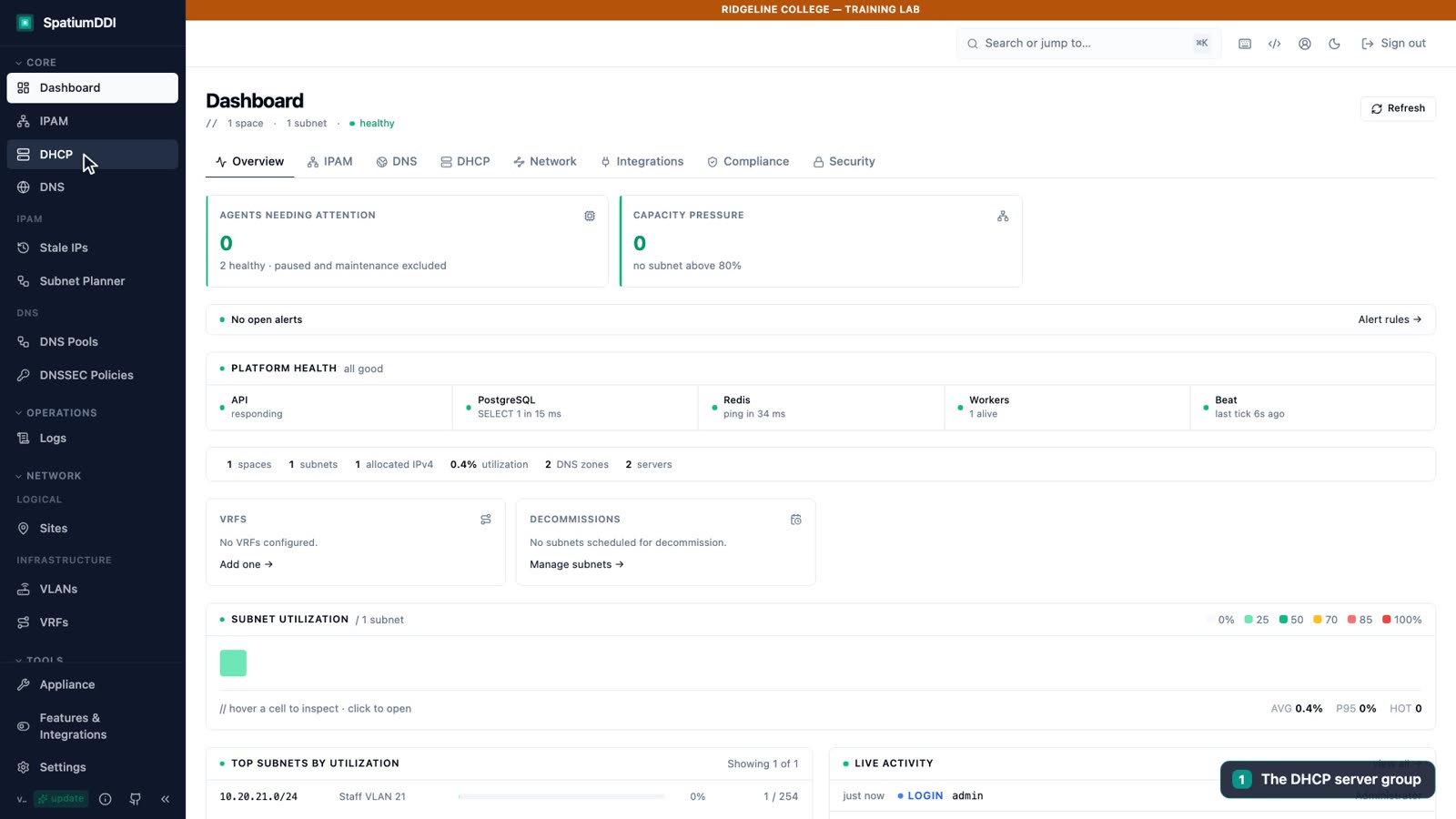
0:36A scope binds an IPAM subnet to a DHCP group. The easiest place to create one is the subnet itself: open Staff VLAN 21, go to DHCP Pools, and choose Create Scope. The group is already filled in, inherited from the campus block.
0:53SpatiumDDI proposes a pool from the subnet. Narrow it to the staff laptop range, from .100 to .199. In the options, the router is already set to the subnet's gateway, 10.20.21.1. Add the domain name, corp.example.edu, then save.
1:12Now keep room for network gear. Add a second pool from .1 to .9 and make it excluded, so DHCP never hands those addresses out. The gateway at .1 sits inside that range, which is exactly why we're excluding it.
1:27Back on the address list, the pool ranges now show up against each address. Next available never picks an address inside the dynamic pool, and a manual allocation there asks you to confirm first, so you don't collide with your own leases.
1:42Nothing needs pushing by hand. The Kea agent picked up the new scope through its configuration long-poll within seconds, and the scope now appears on the group. As clients arrive, their leases show up on each server's Leases tab.
1:56Staff VLAN 21 now has a DHCP scope, a laptop pool and an excluded range for infrastructure, all served by Kea. Next: give Ridgeline's printer a name and an address.
Server groups own the configuration
Section titled “Server groups own the configuration”Like DNS, DHCP is organized in server groups, and the group is where configuration lives. Scopes, pools, reservations and client classes all belong to the group, and every server in it renders the same Kea configuration. The lab’s Kea container, dhcp-kea, registered itself into the group default when it started.
The group’s Mode decides how its servers share the work:
| Mode | Servers | Behavior |
|---|---|---|
| Standalone | One | The server answers on its own |
| Hot Standby (one active, one passive) | Two Kea | The primary serves every client; the standby takes over when the primary is down |
| Load Balancing (both active) | Two Kea | Both serve, and Kea splits clients between them |
The HA modes need at least two Kea servers with an HA Peer URL. With one Kea server, as in the lab, the HA settings are ignored and the server answers on its own; that’s why the lab’s auto-created group works even though it reads “hot-standby”. With a pair, Kea replicates leases between the two servers itself; module 3.4 covers the design, including what happens when a third server joins, in High availability. The group also sets Client reachability (directly attached or relay-only), which matters once real clients arrive; see the DHCP tips.
Scopes bind a subnet to a group
Section titled “Scopes bind a subnet to a group”A scope says: this group’s servers hand out leases on this subnet. The subnet has to exist in IPAM first, and a subnet can have one scope per server group. That’s why you built the address plan before touching DHCP.
The quickest way in is from the subnet. Its DHCP Pools tab has Create Scope, which opens New DHCP Scope with the subnet already pinned and the DHCP Server Group filled in from inheritance, with the note “Inherited group “default” from a parent block.” The dialog also fills in Routers (option 3) with the subnet’s gateway and suggests an initial pool from the tenth host address to the last usable one (.10–.254 on a /24). You can also start from the group’s Scopes tab. The fields that matter first:
- Name: what operators see in lists. Ridgeline uses
Staff VLAN 21. - Initial pool: a first dynamic range (Start IP, End IP), offered only when you create the scope. Ridgeline replaces the suggested
10.20.21.10–10.20.21.254with10.20.21.100–10.20.21.199, and SpatiumDDI names that pooldefault. Kept as suggested, the pool would swallow the fixed addresses of modules 1.7 and 1.8: allocatingprint-01would stop for confirmation, and bulk allocate would treat the lab PCs’ addresses as conflicts. - Lease times: the documented default lease is 86400 seconds (one day).
- Enabled: only active scopes reach Kea. Disabling a scope removes it, and every reservation in it, from Kea’s configuration.
- Options: what clients receive along with the address (see below).
Values you set once in Settings → DHCP Defaults (default DNS servers, domain, NTP servers and lease time) pre-fill every new scope, so set them before you create scopes in bulk.
Pools: which addresses DHCP may use
Section titled “Pools: which addresses DHCP may use”Pools divide the scope’s subnet by purpose. A scope can hold several, and pools in one scope can’t overlap.
| Type | Meaning | Rendered into Kea? |
|---|---|---|
| Dynamic | Handed out to any eligible client | Yes, as a lease range |
| Excluded | Part of the subnet, never offered | No: IPAM bookkeeping |
| Reserved | Held for static assignments, never handed out automatically | No: IPAM bookkeeping |
With Kea, only dynamic pools become lease ranges, and Kea hands out dynamic addresses only from those ranges. Ridgeline’s excluded pool, “Network infrastructure” (10.20.21.1–10.20.21.9), makes a promise visible: it marks the range on the address grid, and no dynamic pool can be added over it later. Everything outside the pools (.10–.99 and .200–.254) stays free for the addresses you allocate by hand in module 1.7.
Pools on the address grid
Section titled “Pools on the address grid”Once pools exist, the subnet’s IP Addresses tab draws a colored band where each pool starts and ends, such as “START OF DYNAMIC POOL — default” and “START OF EXCLUDED POOL — Network infrastructure”, with the pool’s range beside it. IPAM steers around the dynamic range:
- Next available never picks an address inside a dynamic pool, because that range belongs to Kea.
- A Specific IP inside a dynamic pool gets an amber note under the field (“… is inside the dynamic DHCP pool … Allowed, but the DHCP server may also lease it”), and Allocate stops with a warning and becomes Allocate anyway. It’s allowed because pinning a device inside the pool is standard practice, as long as you also reserve the address for that device (module 1.7): an IPAM row alone doesn’t stop Kea leasing the address to someone else.
Options: what clients receive
Section titled “Options: what clients receive”Options travel with every lease. The scope’s options editor has labeled fields for the common ones, and a custom-options list for any other option code:
- Routers (option 3): the default gateway. New DHCP Scope fills it in with the subnet’s gateway,
10.20.21.1for Ridgeline. - Domain Name (option 15): the DNS domain. Ridgeline’s is
corp.example.edu. - Also available: DNS servers (6), NTP servers (42), domain search (119), and the TFTP and boot-file options (66, 67 and 150) used for PXE.
Options set on the scope apply to its pools unless a pool overrides them, and the group’s Option Templates let you apply a saved set to many scopes. Once saved, Ridgeline’s scope stores {"routers": ["10.20.21.1"], "domain-name": "corp.example.edu"}, and Kea renders both options.
SpatiumDDI checks option values when you save. A value Kea couldn’t parse, such as a mistyped router address, is refused with an error that names the option, so one typo can’t stall the configuration of the whole server group.
How the scope reaches Kea
Section titled “How the scope reaches Kea”Nothing is pushed by hand. Seconds after you save, the Kea agent has the new configuration, and the scope appears on the group’s Scopes tab.
Leases flow the other way. Each Kea server keeps its own leases, so you read them per server, on the server’s Leases tab, with a lease history kept for 90 days by default. Sync → DHCP on a subnet doesn’t push anything to Kea: it pulls leases from agentless servers such as Windows DHCP.
Hands-on lab
Section titled “Hands-on lab”Serve DHCP on Staff VLAN 21
You will:
- Create the Staff VLAN 21 scope from the subnet, in the inherited default group
- Replace the suggested pool with 10.20.21.100–10.20.21.199, and set the router and domain-name options
- Exclude 10.20.21.1–10.20.21.9 for network infrastructure
- Confirm that the scope reached the DHCP group
Before you start: Lab 3 is done: Staff VLAN 21 inherits the default DHCP group from the campus block.
- In IPAM, open
10.20.21.0/24, select the DHCP Pools tab and click Create Scope. - In New DHCP Scope, enter the Name
Staff VLAN 21. Check that the DHCP Server Group is already filled in and marked as inherited. - Under Initial pool, replace the suggested range (
10.20.21.10–10.20.21.254): set the Start IP to10.20.21.100and the End IP to10.20.21.199. - Check that Routers (option 3) already shows
10.20.21.1, the subnet’s gateway, and leave it as it is. - In Domain Name (option 15), enter
corp.example.edu, then click Save. - Click Add Pool. Enter the name
Network infrastructure, the Start IP10.20.21.1and the End IP10.20.21.9, set the Type to Excluded, and save the pool. The dialog closes with no warning, and the pool joins the list on the DHCP Pools tab. - Select the IP Addresses tab and find where each pool starts and ends.
- Go to DHCP, open the
defaultgroup and its Scopes tab, and check that Staff VLAN 21 is listed.
./lab/check.sh 4Knowledge check
Section titled “Knowledge check”Go deeper
Section titled “Go deeper”- DHCP features: server groups (§1), scopes and pools (§2), options (§11), Kea HA (§14) and the rules the API enforces (§16)
- DHCP drivers: how a scope is rendered into Kea’s configuration
- System architecture §4: configuration bundles, the long-poll and the Redis wake
- Getting Started, steps 5 and 9: the official DHCP setup order, and what New Scope pre-fills
- GitHub issues #1154 (the scope dialog’s router and pool pre-fill) and #1228 (option values checked on save)
- Tips and tricks: DHCP: HA pairs, client reachability, inactive scopes and more