

1.2 First sign-in and platform settings
A new SpatiumDDI has exactly one account, admin, and its password is admin: a password everyone knows. Your first job on any installation is to replace it. Then you label the environment so that nobody mistakes the lab for production, and review the platform settings that every later form pre-fills. It takes ten minutes, and you do it once per installation.
What you’ll learn
Section titled “What you’ll learn”- Sign in with the default account and complete the forced password change
- Explain the default password policy and the idle sign-out, and where each is set
- Label an environment with a banner, and know who can see it
- Decide what to set in Branding & URL, especially the External URL
- Control the release check, SpatiumDDI’s only default outbound connection
Watch it, then try it
Section titled “Watch it, then try it”The video signs in to a fresh installation, replaces the default password, labels the environment and tours the platform settings. The walkthrough lets you rehearse the same clicks before Lab 1.
Transcript
0:00Welcome to module 1.2. In the next few minutes you'll sign in to SpatiumDDI for the first time, replace the default password, and set the platform defaults that every later form builds on.
0:13A new installation has exactly one account: admin, with the password admin. Sign in with it now. SpatiumDDI won't let you do anything else until you replace that password.
0:24Next comes the forced password change. Enter the current password, then a new one. The checklist under the new password shows the password policy live, and each rule turns green as you meet it. In the lab, use the password from lab/.env. In production, generate one in your password manager.
0:45You're in. The dashboard is almost empty for now; over the next modules you'll fill it with a real campus network. Notice the version number in the bottom-left corner. This course was recorded on release 1.0.0-beta.3.
0:59Now open Settings, at the bottom of the sidebar. Settings are platform-wide defaults, grouped by area: application, security, IPAM, DNS, DHCP and more. Whatever you decide here pre-fills the forms you'll use later, so it pays to decide once.
1:17Branding and URL comes first. The external URL matters as soon as you add single sign-on, because the OIDC and SAML redirect addresses are built from it. In this lab we leave it blank, so SpatiumDDI derives it from the address in your browser.
1:35Next, the environment banner: a coloured strip across every screen that names the system you're working on. It's the cheapest way to stop a change landing on the wrong box. Turn it on, name this one “RIDGELINE COLLEGE — TRAINING LAB”, pick a colour, and save.
1:52Finally, updates. SpatiumDDI collects no telemetry. Its only default outbound call is a daily check for new releases on GitHub. If your network is air-gapped, or policy forbids outbound traffic, switch it off here.
2:07That's it. You've replaced the default password, labelled the environment, and reviewed the platform defaults. Do the same in your lab, then run ./lab/check.sh 1 to confirm. Next up: a tour of the interface.
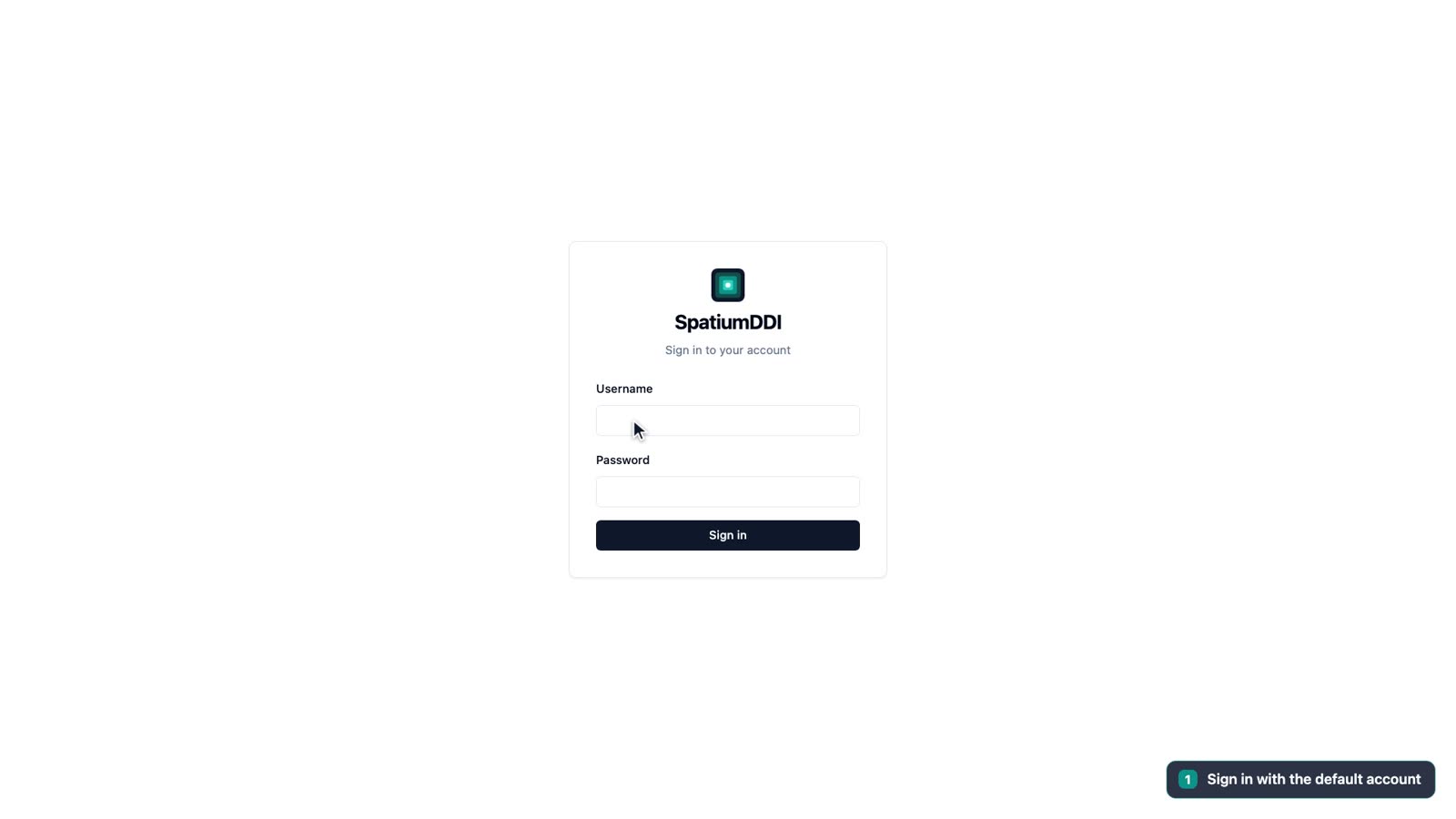
The default account and the forced change
Section titled “The default account and the forced change”- A new installation seeds one superadmin account,
adminwith the passwordadmin, flagged for a forced password change. - After Sign in, SpatiumDDI sends you straight to Change Password: “You must set a new password before continuing.” Enter the Current Password, then the New Password and Confirm New Password, and choose Set New Password. The eye icon in each field shows what you typed.
- Reloading the page or typing another address brings you back to Change Password. The API enforces the block too, not only the browser: until the password changes, it refuses everything except a few password-recovery endpoints, and an API token owned by that account gets
403 Forbiddenas well. There’s no side door. - Users you create in module 2.1 get the same treatment: Require password change on first login is ticked by default.
Lost the admin password? In the lab, ./lab/reset-admin.sh puts admin back to admin with a forced change. On a Docker Compose installation, SpatiumDDI’s Docker guide documents a command that resets it from inside the api container; see Go deeper.
The password policy
Section titled “The password policy”The checklist under New Password is the password policy, checked as you type. Each rule turns green once you meet it, and Set New Password stays disabled until the rules the page can check are met and both entries match. The policy applies from the very first change, on a brand-new installation too. The defaults:
| Rule | Default |
|---|---|
| Minimum length | 12 characters |
| Uppercase letter, lowercase letter, digit | Required |
| Symbol | Not required |
| History | Can’t match any of your last 5 passwords. It’s a note, not a rule that turns green: the server checks it when you submit |
| Maximum age | 0, so passwords never expire. It applies to local accounts only |
An administrator changes these in Settings → Password Policy, next to account lockout and session settings. Module 2.2 covers them.
One session setting matters from your first sign-in: a console left idle for 60 minutes signs out and returns to the sign-in page. Settings → Session & Security → Session Timeout sets the minutes, and 0 turns it off, for example for a wall display. API tokens aren’t affected.
Settings: decide once, pre-fill everywhere
Section titled “Settings: decide once, pre-fill everywhere”Settings, at the bottom of the sidebar, holds platform-wide defaults grouped by area. Values you set here pre-fill the forms you’ll use later, so a decision made once saves retyping it on every zone and scope. Each section has Reset to defaults, and nothing changes until you choose Save.
| Group | Sections |
|---|---|
| Application | Branding & URL, Data Retention, Updates |
| Security | Account Lockout, Agent bootstrap keys, Audit Event Forwarding, Maintenance Mode, Password Policy, Session & Security |
| IPAM | IP Allocation, OUI Vendor Lookup, Device Profiling, Subnet Tree UI, Utilization Thresholds, Reverse DNS (PTR) |
| DNS | DNS Defaults, IPAM → DNS Reconciliation, Zone ↔ Server Reconciliation, TLD Registry |
| DHCP | DHCP Defaults, DHCP Lease Sync |
A few smaller groups (Network, Metrics and more) follow. DNS Defaults and DHCP Defaults hold what new zones and scopes pre-fill, such as the default TTL, the domain name and the lease time. Ridgeline keeps them as they are. Leave both reconciliation jobs off too, as SpatiumDDI’s Getting Started guide advises for a new installation.
Two sections are worth knowing about early:
- Data Retention decides how long SpatiumDDI keeps what it collects: DNS query and DHCP activity logs, metrics, lease history, packet captures and Trash. Deleted items stay restorable in Trash for 30 days by default. Audit log entries are never pruned.
- TLD Registry holds IANA’s list of top-level domains, which decides whether a zone name reads as public, private or undelegated (module 1.4). A copy ships with each release, and it’s refreshed only when you ask.
Branding & URL
Section titled “Branding & URL”Branding & URL opens first:
| Setting | What it does | In the lab |
|---|---|---|
| Application Title | The name in the browser tab and the header | Leave SpatiumDDI |
| External URL | The public address SpatiumDDI builds OIDC and SAML redirect and callback URLs from. Blank means “derive it from the incoming request” | Leave blank |
| Logo | A PNG of up to 512 KB, shown on the sign-in screen and in the sidebar | None |
| Login banner | An acceptable-use notice above the sign-in form. Require acknowledgement adds a checkbox that people must tick before they can sign in | Off |
| Environment banner | A colored strip on every screen that names the environment | On, below |
The External URL can wait in the lab, but not in production. As soon as you add single sign-on (module 2.2), OIDC and SAML build their redirect URLs from it, and those sign-ins fail until it’s right. Set it to the address your users actually type, without a trailing slash; behind a proxy that terminates TLS, that’s the public https:// address. If you run your own reverse proxy in front of SpatiumDDI, also set FRONTEND_TRUSTED_PROXY_CIDRS to the proxy’s address, so that sign-in throttling and the audit log see the real client rather than the proxy. SpatiumDDI’s reverse-proxy guide lists every setting.
Only a superadmin can change branding and banners, and every change is audited. Banner text is served to anyone who can reach the sign-in page, before they sign in, so keep internal details and secrets out of it.
Label the environment
Section titled “Label the environment”Most teams end up with more than one SpatiumDDI, such as a lab and production, and an MSP may run one per client. The environment banner is the cheapest way to stop a change landing on the wrong one. It’s a colored strip across every screen, the sign-in page included, that names the system you’re on.
- Turn on Environment banner, type the Banner text, and pick a Position: top, bottom or both.
- Choose a color preset, Dev, Test, Staging or Prod, or set your own colors.
- Give each environment its own color and keep it, so that a production-colored strip always means production.
Ridgeline’s lab gets RIDGELINE COLLEGE — TRAINING LAB with the Test preset.
Release checks and privacy
Section titled “Release checks and privacy”- SpatiumDDI collects no telemetry.
- Its only outbound connection you didn’t configure yourself is a daily check for new releases on GitHub: an unauthenticated request that sends no version, counts or identifiers. Settings → Updates says so under the switch, with a link to SpatiumDDI’s privacy statement.
- The result drives the update notice next to the version badge at the bottom of the sidebar, which reads
v1.0.0-beta.3in the lab. - If the check can’t reach GitHub, for example on a lab without internet access, an amber check failed pill appears next to the version, and Settings → Updates shows “Last update check failed: …” with the reason. Offline, that’s expected.
- On an air-gapped network, or where policy forbids outbound traffic, turn off Check for GitHub Releases in Settings → Updates.
- Don’t upgrade the lab during the course: every video, screenshot and check targets
1.0.0-beta.3.
Secure the first sign-in and label the lab
You will:
- Replace the default admin password
- Turn on the environment banner
- Review Branding & URL, the release check and the idle timeout
Before you start: Lab 0 passes. If you started the lab without --first-login, run ./lab/reset-admin.sh first.
- Open
http://localhost:8077, enteradminas the Username andadminas the Password, and choose Sign in. - On Change Password, enter
adminas the Current Password. - Enter the
LAB_ADMIN_PASSWORDvalue fromlab/.envas the New Password, and watch each rule in the checklist turn green. The note “Cannot match your last 5 passwords — checked when you submit” gets no tick: the server checks it when you submit. - Enter it again in Confirm New Password and choose Set New Password. The dashboard opens.
- Find the version at the bottom of the sidebar, beside the About, GitHub and Collapse sidebar icons: it reads
v1.0.0-beta.3. - Open Settings at the bottom of the sidebar. Branding & URL opens first; leave External URL blank.
- Under Environment banner, turn the banner on, enter
RIDGELINE COLLEGE — TRAINING LABas the Banner text, choose the Test preset, and choose Save. The banner appears across the top of the page. - Open Updates and find Check for GitHub Releases, with the note under it that says what the check sends. Leave it on in the lab.
- Open Session & Security: Session Timeout is 60 minutes. Leave it as it is, and expect to sign in again after an hour away from the lab.
./lab/check.sh 1Knowledge check
Section titled “Knowledge check”Go deeper
Section titled “Go deeper”- Getting Started: platform settings: the official first-login steps, and why the External URL comes first
- Auth & Permissions: local accounts, the forced password change, MFA and single sign-on
- System administration: platform settings, branding, banners and the release check
- Privacy: every outbound connection SpatiumDDI can make, what each sends, and how to turn it off
- Running behind a reverse proxy: the External URL and the proxy settings that go with it
- Docker Compose deployment: first-time setup, and resetting the admin password from the command line
- REST API: §3.1 covers sign-in and the forced password change